 15 min read
How to Quote a Tweet on Twitter/X: Desktop, iPhone and Mobile Guide
If you want to share someone else’s post on X while adding your own comment, the feature you are looking for is Quote post.
Many people still search for it as “quote tweet” or “Retweet with comment”, because Twitter used the older terminology for years. X now generally refers to the feature as a Quote post.
A Quote post lets you share the original post while adding your own text. X also allows you to include media such as a GIF, photos, or a video when creating the Quote post.
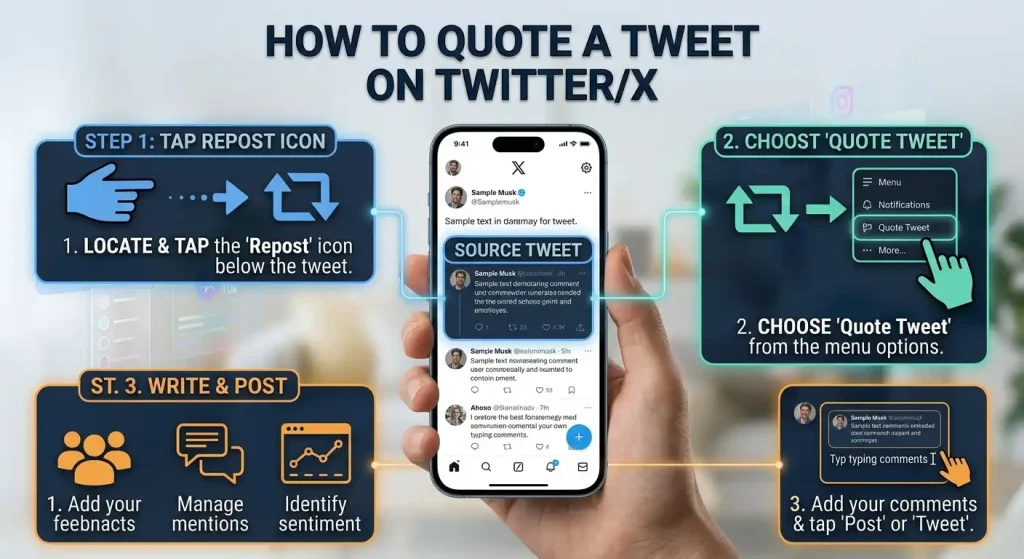
The basic process is similar on desktop, iPhone, and Android:
Find the post → select the Repost icon → choose Quote post → add your comment or media → publish.
The interface can look slightly different depending on the X app version or device, but the underlying feature is the same.
What Is a Quote Post on X?
A Quote post is a post that includes another person’s X post together with your own commentary.
It is different from a normal Repost.
Repost
A Repost shares the original post without adding your own commentary.
Quote post
A Quote post shares the original post while allowing you to add your own text and, where supported, media.
X describes Quote posts as a way to repost another person’s post with your own comment.
For example, suppose someone posts:
“The new phone update is finally available.”
A normal Repost simply shares that post.
A Quote post could add:
“Finally! I’ve been waiting for this update.”
The original post remains attached to your Quote post, so people can see the post you are commenting on.
How to Quote a Tweet on X
The basic method is straightforward.
- Open X.
- Find the post you want to quote.
- Select the Repost icon.
- Choose Quote post or Repost as Quote, depending on the interface wording.
- Add your comment.
- Optionally add supported media.
- Select Repost or the equivalent publish button.
X’s current help documentation gives this same basic workflow for Quote posts.
The terminology may look strange if you are used to Twitter.
You are not looking for a button literally labeled Quote Tweet in every version of the interface.
Look for the Repost icon, then the Quote option.
If you are looking for specific posts or conversations before quoting them, you can also learn how Twitter/X keyword alerts can help you monitor words and topics.
How to Quote a Tweet on X Desktop
If you are using X on a computer through a web browser, the process is slightly different in presentation but essentially the same.
Step 1: Find the post
Open X and locate the post you want to quote.
You can quote a post from:
- Your Home timeline
- A user’s profile
- Search results
- A post’s individual page
- Other areas where the post is displayed
Step 2: Hover over the post
Move your mouse over the post’s action buttons.
Find the Repost icon.
Step 3: Select the Repost icon
Click the Repost button.
A menu should appear with available sharing options.
Step 4: Choose Quote post
Select Quote post.
X’s official desktop instructions describe hovering over the post, clicking the Repost button, selecting Repost as Quote, adding your comment or media, and then publishing.
Step 5: Add your comment
Type your message above the quoted post.
Your text is separate from the original post.
You can use the Quote post to:
- Add an opinion
- Explain something
- Ask a question
- Provide context
- Correct information
- Share additional information
- Start a discussion
Step 6: Publish
Click the Repost button in the Quote post composer.
Your post will appear as a Quote post containing the original post and your added commentary.
How to Quote a Tweet on Mobile
The process on the X mobile app is very similar.
It applies to both Android and iPhone, although the exact wording or placement can change between app versions.
- Open the X app.
- Find the post.
- Tap the Repost icon.
- Select Quote post.
- Enter your comment.
- Add media if you want.
- Publish the Quote post.
X’s official instructions describe the mobile process as tapping the Repost icon, selecting Repost as Quote, adding a comment or media, and then tapping Repost.
How to Quote a Tweet on Twitter X on iPhone
If you are specifically looking for how to quote a tweet on Twitter X on iPhone, you do not need a separate quoting application.
Use the normal X app.
On iPhone:
- Open the X app.
- Locate the post.
- Tap the Repost icon underneath it.
- Choose Quote post.
- Enter your comment.
- Add a photo, GIF, or video if desired.
- Tap the publish/Repost button.
The important part is recognizing the Repost icon.
X’s current terminology can make the feature less obvious to people who remember Twitter’s old interface.
How to Quote a Tweet on Twitter X iOS
The iOS version uses the same basic Quote post workflow.
The main difference you may notice is the appearance of the menus or composer depending on the version of the X app installed on your iPhone.
If you cannot see the Quote option:
- Update the X app.
- Open the individual post rather than relying on a notification preview.
- Tap the Repost icon.
- Check the menu carefully for the Quote option.
- Try opening the post directly from the user’s profile.
The feature itself is not dependent on a separate “quote tweet” application.
How to Quote a Tweet in a Reply
This is where the terminology can become confusing.
A reply and a Quote post are two different types of X posts.
A reply responds directly within a conversation.
A Quote post creates a new post containing the original post plus your commentary.
X defines a reply as a response to another person’s post, while its Quote post feature lets you repost another person’s post with your own comment.
If you want the original post attached to your new post
Use:
Repost → Quote post
If you simply want to respond underneath the original post
Use:
Reply
That distinction matters because the two posts behave differently.
Can You Quote a Tweet in a Reply?
There is no need to manually paste the original post’s URL just to create a normal Quote post.
If your goal is to create a Quote post, use the Repost → Quote post workflow.
If your goal is to reply to somebody while referencing their post, use the Reply button.
You can also include media in a reply, but that does not automatically turn the reply into a Quote post. X treats replies and Quote posts as different post types.
How to Quote a Tweet in Reply Without a Link
If by “without a link” you mean that you do not want to manually paste the original X URL into your text, the normal Quote post feature already handles the reference.
You select:
Repost → Quote post
and X attaches the original post to the Quote post.
You do not need to type something like:
https://x.com/example/status/123456789
into your commentary.
The original post is represented as part of the Quote post itself.
This is one of the main differences between manually sharing a post URL and using X’s native Quote post feature.
Can You Quote a Tweet Without Adding a Comment?
Yes, but if you do not want to add your own text, a normal Repost may be more appropriate.
A Repost simply shares the original post.
A Quote post is specifically designed for adding your own commentary to the shared post.
If you choose Quote post, you can publish the quoted post without turning it into a long commentary, but the purpose of the feature is to give you a place to add your own context.
How to Quote a Tweet With a Video
X allows you to add media when creating a Quote post.
According to X’s current documentation, you can add:
- One GIF
- Up to four photos
- A video
to a Quote post.
Steps
- Find the post.
- Tap or click the Repost icon.
- Select Quote post.
- Add your comment.
- Choose the media option.
- Select your video.
- Publish the Quote post.
This is useful when you want to provide additional visual context.
For example, you could quote a post announcing a software update and attach a short screen recording showing how the update works.
Can You Quote a Tweet With a Video From Your Phone?
Yes.
The X mobile app supports adding media to a Quote post.
X’s documentation also confirms that photos and video can be included when replying or Quote posting from a phone.
The exact video length, file-size limits, and supported formats can change over time, so check X’s current media requirements if the app rejects a particular video.
Quote Tweet vs Reply vs Repost
Understanding the difference between these three actions makes X much easier to use.
| Feature | What it does |
|---|---|
| Reply | Responds directly to another post |
| Repost | Shares another post without your own commentary |
| Quote post | Shares another post while adding your own commentary |
| Quote post + media | Shares another post while adding commentary and supported media |
Reply
A reply is part of the conversation surrounding the original post.
X describes a reply as a response to another person’s post.
Repost
A Repost shares the original post with your followers.
Quote post
A Quote post shares the original post while adding your own commentary.
This makes Quote posts particularly useful when you want your followers to see both the original post and your reaction.
When Should You Use a Quote Post?
A Quote post makes sense when the original post provides context for what you want to say.
Examples include:
Adding your opinion
You can quote an announcement and explain your perspective.
Providing additional information
You can quote a technical post and add an important clarification.
Continuing a discussion
You can quote a post and ask a question to your audience.
Sharing an example
You can quote a post and explain why it is relevant to a larger topic.
Adding media
You can quote the original post and attach a screenshot, image, GIF, or video where supported.
The important thing is that your added text should contribute something rather than simply repeating the original post.
Why Doesn’t the Quote Tweet Option Appear?
If you cannot find the Quote option, several things may be responsible.
The menu wording has changed
Twitter’s old terminology can cause confusion.
The feature is now generally called Quote post, and you access it through the Repost icon.
You are looking at the wrong icon
The Reply icon opens the reply composer.
The Repost icon opens the menu containing Repost and Quote options.
The app is outdated
If the X app has not been updated for a long time, the interface may differ from current instructions.
Check the relevant app store for an available update.
The post has restrictions
Certain posts may have sharing limitations depending on their visibility or account settings.
Protected posts, for example, are not treated the same way as public posts.
Temporary interface changes
X regularly changes parts of its interface.
A feature may appear in a slightly different location after an update.
If a current tutorial shows a different menu, compare it with the latest version of the X app rather than assuming the feature has disappeared.
Can You Quote a Protected Post?
Protected posts have different visibility rules from public posts.
If an account protects its posts, its content is only visible to approved followers.
You should therefore not assume that a Quote post can turn protected content into public content.
X’s documentation states that protected posts are restricted to approved followers.
If you cannot quote or share a particular post, the account’s privacy settings may be part of the reason.
What Happens When Someone Replies to Your Quote Post?
A Quote post creates a new post containing the original post.
An important detail is that replying to your Quote post does not automatically add the author of the original post to that new conversation.
X specifically notes that if someone replies to your Quote post, the original author is not automatically added to the conversation. If you want to involve the original author, you need to mention their username.
This is different from assuming that every discussion under a Quote post automatically becomes part of the original conversation.
How to Quote Your Own Tweet on X
You can Quote post your own previous posts as well.
This can be useful when:
- An old announcement is relevant again.
- You want to provide an update.
- You want to add new information.
- You want to bring an older post back to your audience.
X’s documentation explicitly notes that users can Repost or Quote their own posts.
The process is the same:
- Open your old post.
- Select the Repost icon.
- Choose Quote post.
- Add your new commentary.
- Publish.
Can You Edit a Quote Tweet After Posting?
A Quote post is still a post on X, so the editing capabilities available to your account depend on X’s current post-editing functionality and eligibility.
If you need to change the content and the editing option is not available, you may need to delete the Quote post and publish a corrected one.
The original post attached to the Quote does not count toward your own text character limit, according to X’s documentation.
Can You Quote a Tweet From a Thread?
Yes.
X allows posts within threads to be Reposted or Quote posted.
When a Quote post is created from a thread, X can provide a Show this thread prompt so viewers can access the broader thread context.
This is useful when the individual post makes more sense as part of a longer conversation.
What If the Original Tweet Is Deleted?
If the original post is deleted or otherwise becomes unavailable, the Quote post may no longer display the original content normally.
This is one reason a Quote post should not be treated as a permanent independent copy of someone else’s content.
The Quote post references the original post rather than duplicating its entire contents.
Quote Tweet vs Copying the Tweet Text
There is a significant difference between quoting a post through X’s native feature and copying the text manually.
Native Quote post
- Preserves attribution
- References the original post
- Lets readers access the original
- Adds your own commentary
- Supports certain media
Manually copied text
- Creates a new independent post
- May not preserve the original post context
- Can make attribution less clear
- Does not behave like a Quote post
If you want your audience to see the original post alongside your commentary, the native Quote post feature is generally the more direct approach.
How to Quote a Tweet on X: Quick Method
If you just need the short version:
Desktop
Find post → Repost icon → Quote post → Add comment → Repost
iPhone/iOS
Find post → Repost icon → Quote post → Add comment/media → Repost
Android
Find post → Repost icon → Quote post → Add comment/media → Repost
With video
Repost icon → Quote post → Add comment → Add video → Repost
X’s current documentation confirms that Quote posts can include your comment and supported media, including one GIF, up to four photos, or a video.
Common Quote Tweet Mistakes
Looking for an old “Quote Tweet” button
Look under the Repost menu for Quote post.
Choosing Reply instead
Reply and Quote post are different actions.
Manually pasting the post URL
You normally do not need to paste the original URL into a native Quote post.
Assuming Quote posts are private
A Quote post follows the visibility of your own post and the availability of the referenced content.
Forgetting context
If you are commenting on an old post, make sure your audience can understand why you are sharing it now.
Adding media without explaining it
If you attach a video or image, a short explanation can make the Quote post easier to understand.
Final Takeaway
If you are searching for how to quote a tweet on Twitter/X, the current process is simple:
Open the post → select the Repost icon → choose Quote post → add your comment or media → publish.
The same basic workflow applies to desktop, Android, and iPhone/iOS, although the exact interface can change.
A Reply responds directly to a post, a Repost shares it without your own commentary, and a Quote post lets you share it while adding your own text and supported media. X’s official documentation confirms these distinctions.
If the Quote option seems to be missing, first look under the Repost icon rather than the Reply icon, then check the app version and the visibility or sharing restrictions of the original post.
Related: if you track conversations on X, our guide to Twitter/X keyword alerts shows how to monitor keywords and mentions.
People Also Ask:
Does the original tweet count toward my Quote post character limit?
No. X states that the original post included in your Quote post does not count toward your character limit.
Can I add more than one photo to a Quote post?
Yes. X currently documents support for up to four photos, one GIF, or a video when creating a Quote post.
Will the original author automatically be included if someone replies to my Quote post?
No. X says the original author is not automatically added to the conversation when someone replies to your Quote post. You can mention the original author’s username if you want to involve them.
Can I Quote post one of my own older posts?
Yes. X supports Quote posting your own posts, which can be useful when an older post becomes relevant again or needs additional context.