 23 min read
Photo Editing Software: How to Choose the Right Editor for Your Photos
Photo editing software can be as simple as a crop-and-brightness tool or as advanced as a professional workspace with RAW processing, layers, masks, color management, batch editing, retouching and AI-assisted tools.
That wide range is useful, but it can also make choosing an editor confusing.
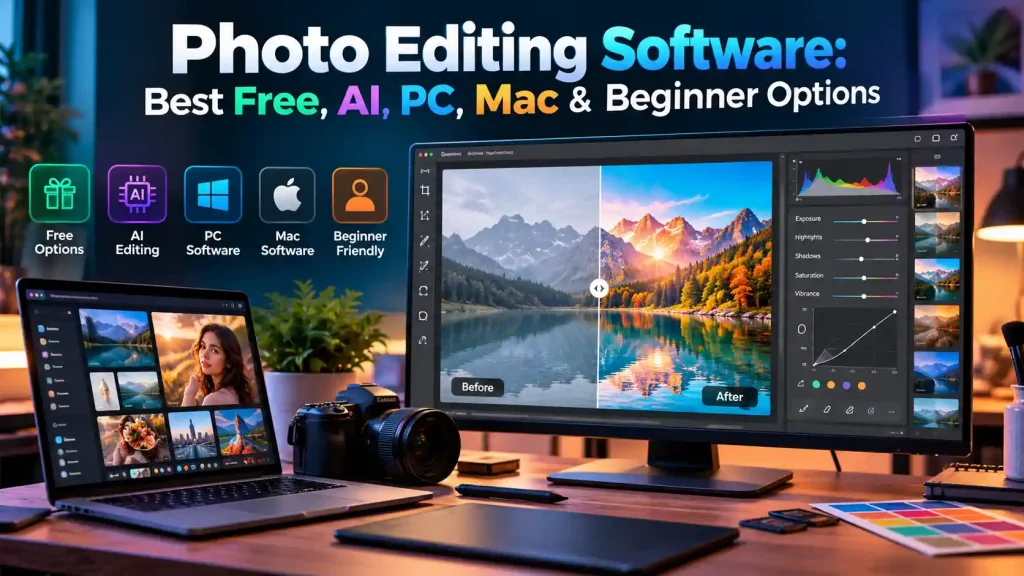
A beginner may only want to resize photos and improve lighting. A photographer may need RAW processing and batch adjustments. A designer may depend on layers and precise selections. Someone creating social media graphics may prefer an online image editor that works directly in a browser. Another user may specifically want an AI photo editor that can remove objects or backgrounds in a few clicks.
There is no single photo editor that is automatically the right choice for everyone.
The better approach is to choose software according to what you edit, how much control you need, what device you use, your budget and how much automation you want.
This guide explains the main types of photo editing software, compares free and paid options, looks at PC and Mac editing, explains AI-powered editing, and examines established programs such as Adobe Lightroom, Photoshop, GIMP, Corel PaintShop Pro, Luminar and Movavi.
What Is Photo Editing Software?
Photo editing software is a program or online service used to modify digital images.
Basic editing can include:
- Cropping and straightening
- Resizing
- Brightness and contrast adjustments
- Exposure correction
- Color correction
- Sharpening
- Noise reduction
- Filters and presets
- Red-eye removal
- Retouching
- Background removal
- Object removal
More advanced image editing software can provide:
- Layers
- Layer masks
- RAW processing
- Curves and advanced color controls
- Professional retouching
- Batch processing
- Compositing
- HDR workflows
- Panorama creation
- AI-powered editing
- Plugin support
- Cloud synchronization
- Advanced export controls
The important difference is that not every editor is designed for the same type of work.
A simple free photo editor can be excellent for resizing an image for a website, while professional photography editing software may be more appropriate for processing hundreds of RAW photographs.
What Can You Do With Photo Editing Software?
The most common uses fall into several groups.
Basic photo correction
This is where beginners usually start.
You can correct an image that is too dark, too bright, too warm or too dull. Cropping can improve composition, while resizing prepares an image for websites, social networks or printing.
Portrait retouching
Photo editors can remove blemishes, reduce distractions, adjust skin appearance and make other controlled changes to portraits.
AI-assisted tools can automate some of these tasks, but manual controls remain useful when you need precise results.
RAW photography
RAW files contain substantially more original image information than a processed JPEG. RAW workflows give photographers more flexibility when adjusting exposure, white balance, shadows, highlights and color.
Not every editor handles RAW files in the same way, so camera support should be checked before choosing software.
Creative editing
Layers, masks, selections and blending tools allow multiple images or visual elements to be combined.
This is useful for:
- Compositing
- Advertising graphics
- Social media artwork
- Product images
- Creative portraits
- Posters
- Digital artwork
Batch editing
If you have hundreds of photographs, editing each image individually can take a long time.
Batch editing allows common adjustments to be applied to multiple images. This is particularly valuable for photographers working with large shoots.
Main Types of Photo Editing Software
Photo editing programs generally fall into several overlapping categories.
Beginner-friendly editors
These focus on a straightforward interface and automated tools.
They commonly include:
- One-click enhancement
- Presets
- Crop and resize
- Simple color correction
- Background removal
- Object removal
- Basic retouching
They are useful when you want good-looking results without learning a complicated professional workflow.
Professional photo editors
Professional editors generally provide greater control.
Look for features such as:
- Advanced layers
- Masks
- RAW processing
- Color management
- Detailed retouching
- Non-destructive workflows
- Batch processing
- Advanced selections
- Plugin support
- High-quality export options
The learning curve is usually higher, but the additional control matters when editing work needs to be precise and repeatable.
Free photo editing software
Free software can range from simple web tools to powerful desktop applications.
GIMP is a notable example of a freely distributed desktop image editor designed for photo retouching, image composition and image authoring. Current GIMP development also includes newer non-destructive layer capabilities.
Free does not automatically mean basic, but free software may differ from commercial products in interface design, support, cloud services, automation or integrated AI features.
Online photo editors
Online editors run inside a browser rather than requiring a traditional desktop installation.
They can be useful for:
- Quick edits
- School or office computers
- Social media images
- Simple resizing
- Removing backgrounds
- Creating graphics
- Editing when you move between devices
The trade-off is that browser-based editors can have fewer advanced features than dedicated desktop software.
AI-powered photo editors
Modern AI photo editing software can automate tasks that previously required manual selections or extensive retouching.
Examples include:
- Background removal
- Object removal
- Subject selection
- Portrait retouching
- Image enhancement
- Noise reduction
- Upscaling
- Sky or background adjustments
- Generative image cleanup
AI is best viewed as another set of tools rather than a replacement for every traditional editing technique.
AI-powered photo editing is becoming increasingly common, especially for automated enhancements and creative effects. If you are also interested in real-time face-swapping technology, see our guide to DeepFaceLive and how it works with live video.
Best Photo Editing Software by Use Case
Instead of asking which program is universally the best, start with the job you need to accomplish.
| Software | Best suited to | Key strengths |
|---|---|---|
| Adobe Lightroom | Photographers and large photo libraries | RAW editing, organization, batch adjustments, presets, AI-assisted tools |
| Adobe Photoshop | Advanced editing and compositing | Layers, masks, retouching, compositing, detailed image manipulation |
| GIMP | Users wanting a free desktop editor | Advanced image manipulation, layers, extensibility |
| Corel PaintShop Pro | Windows users wanting a traditional desktop editor | Photo editing, RAW workflows, AI-assisted features |
| Luminar Neo | Users who want AI-assisted creative editing | AI enhancement, RAW editing, layers, automated creative tools |
| Movavi Photo Editor | Beginners and quick desktop editing | Simple workflow, retouching, background and object removal |
| Browser-based editors | Quick edits and lightweight workflows | Accessibility, convenience and no traditional installation |
This table is not a universal ranking. Each program addresses a different workflow.
For example, a photographer processing a large collection of RAW files may prioritize organization and batch processing, while someone creating a single promotional image may care more about layers, text and compositing.
Adobe Lightroom Photo Editor
Adobe Lightroom is strongly associated with photography workflows rather than purely graphic manipulation.
Its editing tools include adjustments for lighting and color, presets, cropping, masking, retouching and AI-assisted features. Current Lightroom features include AI-powered assisted culling, Generative Remove, Lens Blur, Denoise and batch editing capabilities.
Lightroom is particularly useful when you need to work with many photographs.
For example, a photographer can make a basic exposure or color adjustment and apply the settings across multiple images rather than manually repeating the same changes.
Lightroom also supports workflows involving both local files and cloud-based photo storage depending on the Lightroom version and configuration. Lightroom Classic and the newer Lightroom ecosystem differ in how they handle storage, catalogs, plugins and local files.
Lightroom vs Photoshop
Lightroom and Photoshop overlap, but they are designed around different workflows.
Lightroom is particularly useful for:
- Organizing photographs
- Processing RAW images
- Batch editing
- Applying presets
- Managing large collections
- Making photographic adjustments
Photoshop is particularly useful for:
- Detailed retouching
- Layers
- Compositing
- Pixel-level manipulation
- Advanced selections
- Graphics and text
- Complex image transformations
The two can also be used together. Adobe supports workflows that send photographs from Lightroom to Photoshop for more advanced editing.
Adobe Photoshop Editor
Photoshop remains one of the most feature-rich options for detailed image editing.
Its strength is not simply adjusting brightness or saturation. It is the ability to construct and manipulate an image using layers, masks, selections, retouching tools and other advanced controls.
A professional photo editor may use Photoshop when a photograph needs:
- Detailed skin retouching
- Complex object removal
- Multiple-image compositing
- Graphic elements
- Text
- Precise masking
- Layer-based adjustments
- Creative manipulation
Photoshop also contains AI-assisted tools. For example, its Remove tool can use generative AI to help replace unwanted areas of an image.
Is Photoshop free online?
This needs an important distinction.
There are websites and applications described as “Photoshop alternatives,” “Photoshop-style editors” or free online image editors. They are not automatically Adobe Photoshop.
Adobe’s own Photoshop on the web is a browser version of Photoshop, but Adobe states that there is not a free full version of Photoshop on the web. Editing your own photos requires an applicable Photoshop plan or free trial.
Therefore, when searching for “Photoshop free online,” check whether the service is actually Adobe Photoshop or simply an unrelated online image editor.
GIMP Photo Editor
GIMP is one of the most recognizable choices for users looking for free photo editing software.
It is free software designed for photo retouching, image composition and image authoring.
It can be useful when you want desktop editing capabilities without subscribing to a commercial software package.
GIMP is particularly suitable for users who want:
- Layers
- Image manipulation
- Retouching
- Compositing
- Detailed editing
- A free desktop application
- Extensibility through plugins and related tools
RAW workflows require more attention. GIMP can work with RAW-processing solutions such as darktable and RawTherapee through plugins rather than treating RAW development exactly like a dedicated photography management application.
For someone completely new to editing, GIMP can take longer to learn than a simplified editor. For a user willing to learn the interface, however, it offers substantial control without the cost of commercial software.
AI-powered image tools are becoming more capable, and research projects such as Muse AI demonstrate how text-based instructions can be used for image generation and editing.
Corel Photo Editing Software
Corel PaintShop Pro is another established desktop option, particularly relevant to Windows users.
It combines traditional photo editing with features aimed at photographers and creative users. Corel’s documentation describes RAW workflows through its Camera RAW Lab and AfterShot Lab, along with features such as batch RAW editing.
PaintShop Pro also includes AI-assisted capabilities such as background replacement, portrait effects, upsampling, denoise and artifact removal in supported versions.
This makes Corel photo editing software worth considering when you want a desktop editor that combines conventional controls with automated tools.
Luminar AI, Luminar 4 and Luminar Neo
The Luminar name can be confusing because several generations of the software exist.
Luminar AI and Luminar 4 are legacy products. Skylum identifies them as legacy products and states that development moved forward with Luminar Neo.
That distinction matters if you see older articles recommending Luminar AI or Luminar 4 as current software.
Luminar Neo is the more relevant current product in the Luminar family. Its feature set includes AI image enhancement, RAW editing, layers, non-destructive editing, lens correction, cloning, color tools, crop and resize, and batch processing.
Luminar can appeal to users who want strong automated tools without building every edit manually.
Movavi Photo Editor
Movavi Photo Editor is aimed more toward straightforward editing than extremely complex professional compositing.
Its current feature set includes AI-assisted retouching, background swapping, object removal, automatic enhancement, color correction and photo restoration. Movavi provides versions for Windows and Mac.
This type of editor can be useful for users who want to:
- Improve photographs quickly
- Remove unwanted objects
- Retouch portraits
- Replace backgrounds
- Restore older images
- Apply presets
- Make common adjustments without a complicated workflow
A “free download” should not automatically be interpreted as a completely free unrestricted product. Movavi describes its downloadable version as a trial and documents restrictions on trial output.
Free vs Paid Photo Editing Software
The phrase “free photo editing software” can mean several different things.
Completely free software
Some desktop programs are distributed as free software.
GIMP is an example.
This can be attractive when your priority is avoiding subscription costs.
Free online editors
Some browser-based tools offer free editing, although advanced features may require payment.
These are convenient for quick work but can have limitations involving:
- File size
- Export resolution
- Storage
- Advanced features
- Watermarks
- Account requirements
- AI usage limits
Free trials
A free trial is not the same thing as free software.
A commercial application may allow you to download and test it for free while limiting exports or requiring payment after the trial period.
Always check the actual license and export restrictions before starting important work.
Freemium editors
Some programs provide a free tier but reserve certain tools for paid users.
AI tools are particularly likely to have usage limits or premium restrictions.
The practical lesson is simple: check what “free” actually includes before choosing an editor.
What Should Beginners Look for in Photo Editing Software?
The best photo editing software for beginners is usually not the program with the largest feature list.
A beginner benefits from a clear interface and tools that produce predictable results.
Look for:
Simple navigation
Important tools should be easy to find.
If basic controls are buried behind multiple menus, learning the software becomes unnecessarily frustrating.
Presets
Presets can provide a starting point for color, contrast and overall appearance.
They are useful for learning because you can compare the original image with an edited version and then adjust the settings yourself.
Automatic enhancement
One-click enhancement can quickly demonstrate how exposure, color and contrast affect a photograph.
Easy cropping and resizing
These are among the most frequently used editing functions.
Undo and history
Beginners will make mistakes. A good history system makes experimentation much safer.
Non-destructive editing
When available, non-destructive editing allows you to change your adjustments without permanently destroying the original image.
AI-assisted tools
AI can simplify difficult tasks such as background removal or object cleanup.
The important point is that AI should make the workflow easier, not make the software impossible to understand when the automatic result needs correction.
Photo Editing Software for PC
When choosing photo editing software for PC, compatibility is only the first consideration.
You should also look at:
- Windows version requirements
- RAM requirements
- GPU requirements
- RAW camera support
- Storage requirements
- Plugin support
- Local versus cloud workflows
- Export formats
- Performance with large images
A simple photo editor may run comfortably on an ordinary PC, while professional software handling large RAW files, high-resolution images or AI processing may require substantially more system resources.
For a Windows user, suitable categories include:
- Free desktop editors such as GIMP
- Professional applications such as Photoshop
- Photography-focused software such as Lightroom
- Windows-focused commercial editors such as PaintShop Pro
- AI-oriented editors such as Luminar Neo
- Beginner-friendly tools such as Movavi Photo Editor
Do not choose solely because a program is advertised as the “best photo editor for PC.” Match its workflow to what you actually need.
Photo Editing Software for Mac
Mac users have many of the same choices, but compatibility still needs to be checked for the exact application and version.
Important considerations include:
- macOS version
- Apple silicon support
- Intel Mac support where applicable
- RAW camera compatibility
- External display workflow
- Cloud synchronization
- Storage requirements
- Plugin compatibility
Lightroom and Photoshop support Mac workflows, while Luminar Neo and Movavi also provide Mac versions. GIMP is another option for users looking for freely distributed desktop software.
If you use an Apple silicon Mac, check the application’s current system requirements rather than assuming that an older version will provide the same compatibility.
Traditional Editing vs AI-Assisted Editing
Traditional editing and AI editing are not necessarily competing approaches.
They often work best together.
Traditional editing
Traditional controls include:
- Exposure
- Contrast
- Highlights
- Shadows
- White balance
- Saturation
- Curves
- Crop
- Sharpening
- Cloning
- Healing
- Layers
- Masks
These controls give you predictable, direct control over the image.
AI-assisted editing
AI tools can automate tasks such as:
- Subject selection
- Background removal
- Object removal
- Portrait retouching
- Noise reduction
- Image enhancement
- Upscaling
- Automatic masking
For example, Lightroom currently provides AI-assisted selection, Generative Remove, Lens Blur and Denoise features.
The advantage is speed.
The limitation is that automated results are not always perfect. Hair, transparent objects, complicated backgrounds, reflections and fine edges can require manual correction.
For professional work, the ability to adjust or refine an AI-generated result is often more important than simply having an AI button.
What Is an AI Photo Editor?
An AI photo editor uses machine-learning or generative technologies to automate some editing operations.
An AI image editor may identify objects, people, skies, backgrounds or other visual elements and then apply an edit based on that understanding.
Common examples include:
AI background removal
The software detects the main subject and separates it from the background.
This is useful for:
- Product photos
- Profile pictures
- Social media graphics
- E-commerce images
- Creative compositions
AI object removal
The software identifies the unwanted object and attempts to reconstruct the area behind it.
This can be much faster than manually cloning every part of the background.
AI retouching
Portrait editors can automatically detect faces and apply adjustments such as blemish reduction or other cosmetic edits.
AI enhancement
AI enhancement can attempt to improve:
- Sharpness
- Noise
- Lighting
- Resolution
- Detail
AI upscaling
Upscaling tools attempt to increase image resolution while reconstructing missing detail.
The result depends heavily on the original image and the algorithm.
Are AI Photo Editors Always Better?
No.
AI is useful when speed matters, but automated editing can introduce unwanted changes.
For example, an object-removal tool might create an incorrect texture. An AI portrait tool might over-smooth skin. An upscaling system can invent detail that was not actually present in the original image.
For important photographs, it is good practice to:
- Keep the original file.
- Review AI edits at full size.
- Check faces and fine details.
- Inspect edges and backgrounds.
- Correct mistakes manually when necessary.
- Export the final version in an appropriate format.
AI is best treated as an assistant rather than an automatic guarantee of a perfect result.
Online Photo Editors: When Are They Useful?
An online image editor can be extremely convenient.
You can open a browser, upload an image and start editing without installing a traditional desktop program.
This is especially useful for:
- Quick social media graphics
- Website images
- Simple photo corrections
- School assignments
- Office work
- Resizing and compression
- Simple background editing
A browser-based editor is also useful when you regularly move between computers.
However, online editing is not automatically better than desktop editing.
A browser workflow may be less suitable when you need:
- Huge RAW libraries
- Complex layer structures
- Large files
- Advanced color management
- Offline editing
- Extensive plugin support
- Long professional editing sessions
Cloud storage and privacy also deserve attention. Before uploading sensitive photographs, check how the service handles uploaded files and stored projects.
What Features Should You Compare?
The right photo editing software should be evaluated by the features you actually need.
Layers
Layers are essential for complex compositions.
They allow different elements of an image to be edited independently.
RAW support
If you are a photographer who shoots RAW, check whether the software supports your camera files and how frequently new camera models are added.
Crop and resize
These are basic but essential functions.
Color correction
Look for controls for:
- White balance
- Temperature
- Tint
- Saturation
- Vibrance
- Hue
- Curves
Exposure adjustment
A good editor should provide control over brightness and tonal range.
Retouching
Portrait and product photographers may need healing, cloning and other correction tools.
Background removal
This can be manual, automatic or AI-assisted.
Object removal
Check whether the tool simply clones existing pixels or can intelligently reconstruct missing areas.
AI tools
Do not look only for an “AI” label.
Check what the AI actually does and whether you can refine its results.
Batch editing
This matters greatly when processing large photo collections.
Export formats
Common formats include:
- JPEG
- PNG
- TIFF
- PSD
- WebP
- RAW-related formats
- Other application-specific formats
The right combination depends on your final destination.
Cloud and storage
Cloud workflows can make it easier to move between devices, but local storage can provide more direct control over your files.
Plugins and integrations
Advanced users may need third-party plugins or integrations with other editing applications.
Desktop vs Online Photo Editing
| Factor | Desktop software | Online editor |
|---|---|---|
| Installation | Required | Usually not |
| Internet dependency | Often optional | Usually important |
| Large photo libraries | Generally better suited | Can be limited |
| Advanced editing | Usually stronger | Varies |
| Quick edits | Good | Excellent |
| Cross-device access | Depends on software | Often convenient |
| RAW workflows | Common in photography software | Less consistent |
| Plugin ecosystem | More common | More limited |
| Cloud storage | Depends on application | Often integrated |
| Privacy control | More local options | Files may be uploaded |
If you regularly edit large photography collections, desktop software is often the more natural workflow.
If you only need quick edits, an online image editor may be sufficient.
Free Photo Editor for PC: What Should You Expect?
If your main requirement is a free photo editor for PC, start by deciding whether you need basic editing or advanced manipulation.
For basic tasks, you may only need:
- Crop
- Resize
- Rotate
- Brightness
- Contrast
- Color
- Sharpening
For advanced editing, look for:
- Layers
- Masks
- Selections
- Retouching
- Plugin support
- Advanced export controls
GIMP is an important option in the free desktop category because it goes well beyond simple crop-and-filter editing.
However, a feature-rich free editor may have a steeper learning curve than a commercial beginner-focused program.
Best Free Photo Editor Online: What Matters?
When evaluating a free online photo editor, check five things first:
- Export limitations — Can you download the final image at the resolution you need?
- Watermarks — Does the free version add branding?
- File limits — Is there a maximum image size?
- AI limits — Are automated tools restricted?
- Privacy — What happens to uploaded photographs?
An editor that looks free but severely restricts exports may not actually fit your workflow.
How to Choose Photo Editing Software
A simple decision process can narrow the options quickly.
Choose based on skill level
Beginner:
Prioritize simple controls, presets, automatic enhancement and clear navigation.
Intermediate:
Look for RAW support, layers, masks, better color controls and batch processing.
Professional:
Prioritize advanced color management, reliable RAW processing, non-destructive workflows, detailed retouching, layers, integrations and predictable exports.
Choose based on budget
If you want to avoid paying altogether, investigate genuinely free software first.
If you are willing to pay, compare the actual workflow benefits rather than simply choosing the application with the longest feature list.
Also distinguish:
- Free software
- Free tier
- Free trial
- Subscription
- One-time purchase
- Optional AI credits or paid extensions
Choose based on operating system
For Windows, Mac or both, verify the exact system requirements before purchasing.
Do not assume that a product’s name appearing in search results means every version supports every operating system.
Choose based on photography needs
If you shoot RAW regularly, RAW compatibility should be one of your first filters.
If you edit hundreds of images, organization and batch processing may matter more than creative effects.
If you mainly edit individual images for social media, a simpler editor may save time.
Choose based on AI requirements
If AI is important, identify the exact task.
Do you want:
- Background removal?
- Object removal?
- AI retouching?
- Noise reduction?
- Upscaling?
- Automatic masking?
- Generative editing?
Different programs use AI for different jobs.
Choose based on workflow
Finally, ask where your photographs live.
If your files are primarily local, desktop software may make more sense.
If you work across multiple devices, cloud-connected software may be more convenient.
A Practical Photo Editing Workflow for Beginners
You do not need to learn every tool immediately.
Start with this sequence:
Step 1: Preserve the original
Keep the original photograph untouched.
Step 2: Crop
Remove unnecessary space and improve the composition.
Step 3: Correct exposure
Adjust brightness, highlights and shadows.
Step 4: Correct color
Adjust white balance, temperature, saturation or vibrance.
Step 5: Improve detail
Apply sharpening or noise reduction carefully.
Step 6: Retouch only where necessary
Remove distracting blemishes or objects without making the image look artificial.
Step 7: Check the image at full size
A photo that looks perfect when zoomed out can reveal halos, noise or strange AI artifacts when viewed at 100%.
Step 8: Export correctly
Use an appropriate format and resolution for the destination.
For example, a website image does not necessarily need the same export settings as a high-quality print.
Which Type of Editor Fits Your Situation?
Use this quick guide:
You want free desktop software:
Look at free editors such as GIMP.
You shoot lots of RAW photographs:
Prioritize a photography-focused editor with RAW processing, organization and batch editing.
You need advanced retouching and compositing:
Look for a professional editor with layers, masks and detailed selection tools.
You are a beginner:
Choose software with a clean interface, presets and useful automated controls.
You want AI background removal:
Look for an editor with reliable subject detection and the ability to refine the selection.
You want quick edits in a browser:
An online photo editor may be enough.
You use both Windows and Mac:
Check that the exact application and version support both operating systems.
You want simple AI-powered editing:
Programs such as Luminar Neo and Movavi Photo Editor are examples of desktop software that emphasize AI-assisted workflows.
You want a large professional ecosystem:
Adobe Lightroom and Photoshop provide complementary photography and advanced image-manipulation workflows.
The Most Important Thing Is the Workflow
The phrase “best photo editing software” sounds like there should be one obvious answer.
In practice, the choice depends on the workflow.
A beginner editing family photographs does not need the same tools as a professional retoucher.
A photographer processing 1,000 RAW files has different requirements from someone creating a single Instagram image.
A user working on an older PC may prioritize performance, while another user may care more about cloud synchronization.
Likewise, someone interested in an AI photo editor should identify the specific AI features they need rather than choosing software simply because it advertises itself as “AI-powered.”
The strongest choice is usually the one that makes your regular editing tasks faster, easier and more controllable.
Frequently Asked Questions
What should I check before installing a photo editor?
Start with operating-system compatibility, system requirements, supported file formats, RAW support if needed, export limitations and whether important features are free or paid.
Can free photo editing software handle professional work?
Yes, depending on the type of professional work. Free software can provide advanced image manipulation, but professional workflows may require particular RAW processing, color-management, automation, integrations or specialized features that differ between applications.
Does AI replace traditional photo editing?
Not completely. AI can automate tasks such as selections, background removal, object removal and enhancement, while traditional controls provide more direct and predictable control over the final result.
Should I use an online editor or install desktop software?
Use an online editor when convenience and quick access are your priorities. Desktop software is generally more appropriate when you need extensive editing, large files, RAW workflows, offline access or advanced features.
Final Takeaway
Photo editing software covers a much wider range of tools than simple filters and cropping.
Free editors can provide serious desktop editing capabilities. Professional applications offer deeper control and specialized workflows. Online editors make quick editing convenient, while AI-powered tools can automate background removal, object cleanup, retouching, enhancement and other repetitive tasks.
For beginners, simplicity matters. For photographers, RAW support and organization can be more important. For professionals, layers, masks, color controls, batch processing and reliable exports can make a much bigger difference.
Rather than searching endlessly for one universal “best photo editor,” identify your skill level, operating system, budget, editing workload, RAW requirements, AI needs and preferred workflow. That will narrow the choices far more effectively than a generic ranking.
Need to Know
Is there a genuinely free photo editor for Windows?
Yes. GIMP is a prominent freely distributed desktop image editor. Other free and freemium options are also available, but their feature sets and licensing models differ.
Are free online photo editors safe for private photographs?
That depends on the specific service and how it handles uploaded files. Before uploading private images, review its privacy policy, storage practices and account requirements.
Do professional photographers need both Lightroom and Photoshop?
Not necessarily, but the two applications address different workflows. Lightroom focuses heavily on photo organization and processing, while Photoshop provides more extensive pixel-level editing, compositing and layer-based work.
Are Luminar AI and Luminar 4 still current products?
They are legacy Luminar products. Skylum’s current development is centered on Luminar Neo rather than continuing development of Luminar AI or Luminar 4.