 17 min read
MacBook Stage Light Effect: Causes, Fixes, and What to Do
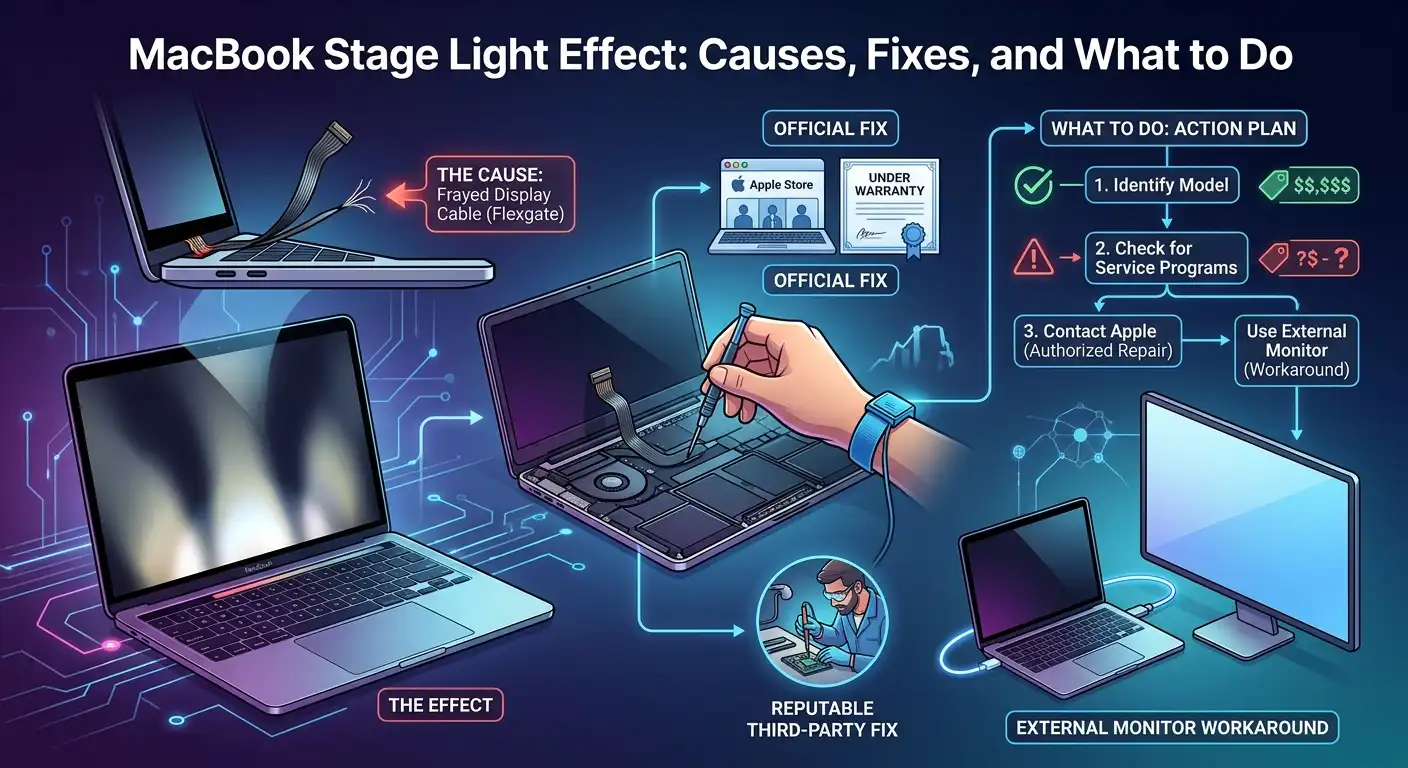
If you see several bright patches or uneven bands rising from the bottom edge of your MacBook display, the pattern can look like tiny spotlights shining onto a stage. That is where the term MacBook stage light effect comes from.
On certain older MacBook Pro models, this symptom became associated with a display backlight problem involving the flex cable that connects the display assembly to the computer. The problem became widely known online as Flexgate.
The important thing is not to confuse this appearance with a normal macOS visual effect. If the brightness pattern remains fixed at the physical edge of the screen, changes with the lid position, or progresses toward a dark or partially black display, it can indicate a hardware problem rather than a software setting.
This guide explains what the stage-light pattern looks like, why it can occur, how to troubleshoot it safely, what the black-screen symptom means, and when professional repair is more appropriate than software troubleshooting.
What Is the MacBook Stage Light Effect?
The MacBook stage light effect is a description for an unusual pattern of uneven illumination that appears along the lower part of the display.
Instead of the entire screen being evenly illuminated, you may see several brighter areas extending upward from the bottom edge.
It can look something like:
- Bright patches along the lower edge
- Repeated vertical or fan-shaped areas of light
- Uneven illumination on white or light backgrounds
- Darker sections between the bright areas
- A spotlight-like pattern rising from the bottom of the display
On affected MacBook Pro models, the symptom has been associated with the display’s backlight system.
Apple’s historical 13-inch MacBook Pro Display Backlight Service Program specifically described affected displays as showing vertical bright areas along the entire bottom of the screen or experiencing complete backlight failure.
That makes the location of the problem particularly useful when diagnosing it.
A normal software brightness problem generally changes the brightness of the whole display. A physical stage-light pattern is localized to the screen itself.
Why You May See Spotlights at the Bottom of a MacBook Pro
The classic stage-light problem on older MacBook Pro models is associated with the display backlight connection.
The display uses a thin flex cable to carry signals and power between the display assembly and the rest of the MacBook. Repeatedly opening and closing the notebook puts mechanical stress on components in the display connection.
In the MacBook Pro models involved in the historical Flexgate issue, the display flex cable became a major focus of technical and legal discussions surrounding the stage-light symptom. Court records describing the litigation state that the alleged problem involved the backlight cables and that Apple introduced longer cables in later models.
The practical symptom can begin as relatively small bright areas.
Over time, the problem may become more noticeable.
Some users report that the display later develops:
- More pronounced bright bands
- Flickering
- Changes when the lid is moved
- Reduced backlight
- A much darker screen
- Complete backlight failure
However, not every MacBook with an uneven backlight has the same underlying cause.
A damaged display, liquid exposure, connector problem, backlight circuitry failure, or previous display repair can produce similar symptoms.
MacBook Pro Stage Light Effect vs Normal Display Behavior
A key question is whether the appearance is actually a hardware fault.
Normal display behavior can include changes in brightness caused by:
- Automatic brightness
- True Tone
- Power settings
- Ambient lighting
- Battery-saving behavior
- Software settings
Those features normally affect the display as a whole.
The stage-light pattern is different because the uneven illumination is concentrated in specific physical areas.
For example, if you open a plain white document and see several distinct bright patches extending upward from the bottom bezel, that is more consistent with a display/backlight issue than with an ordinary brightness setting.
The effect can also become easier to see against light-colored backgrounds.
A useful first check is to display something simple and bright, such as a blank document or white webpage, and look carefully at the lower edge.
If the pattern stays in the same physical location, software brightness settings are unlikely to be the primary explanation.
MacBook Pro Stage Light Effect and Lid Position
One particularly useful diagnostic clue is whether the display changes when you move the lid.
A damaged or failing display flex connection can behave differently at different lid angles because opening and closing the notebook changes the physical position and tension around the display connection.
If the screen:
- Becomes darker at a particular angle
- Flickers when the lid moves
- Recovers when the lid is moved slightly
- Shows different backlight behavior at different angles
that is a strong reason to investigate the display hardware.
Do not repeatedly flex the lid to reproduce the problem, though.
If the cable or connection is already damaged, deliberately moving the display back and forth can potentially make the situation worse.
Instead, note whether the problem naturally changes during normal use.
MacBook Pro Stage Light Effect With a Black Screen
The MacBook Pro stage light effect black screen problem deserves particular attention.
The early stage-light symptom can involve uneven illumination while the display remains usable.
A more serious backlight failure can eventually leave the screen extremely dark or apparently black even though the MacBook itself is still running.
This distinction matters because the computer may not actually be shut down.
The display can be producing an image while the backlight is failing.
A simple way to investigate a very dark display is to shine a light at the screen from an angle in a dark environment. If you can faintly see the desktop or login screen, that can indicate that the LCD is producing an image but the backlight is not illuminating it properly.
This is only an observation technique, not a definitive diagnosis.
If the MacBook is running normally but the internal display becomes almost completely dark, an external display can also help determine whether the computer itself is still functioning.
MacBook Pro Stage Light Effect Not Working: What Does That Mean?
Searches for MacBook Pro stage light effect not working can mean two very different things.
Someone may mean that the stage-light pattern has disappeared.
That can be good news, but it does not necessarily prove that the underlying hardware problem has been permanently resolved. Some intermittent hardware problems can temporarily behave normally.
Someone else may mean that the display backlight has stopped working.
That is more serious.
If the MacBook turns on but the built-in display is extremely dark or black, check whether:
- The MacBook is actually powered on.
- An external monitor works.
- The internal display shows a faint image under a light.
- The problem changes with the lid position.
- The issue appeared after physical damage or liquid exposure.
These observations can help a technician determine whether the problem is related to the display, backlight, cable, connector, or another component.
If you are trying to determine whether a MacBook display problem is related to temporary image retention or more persistent screen wear, see our explanation of image retention vs burn-in.
How to Troubleshoot the MacBook Stage Light Effect
There is no reliable software setting that repairs a physically damaged backlight cable.
However, a few safe checks can help distinguish a display hardware issue from a temporary software problem.
1. Restart the MacBook
A restart is worth trying because it eliminates temporary software or graphics-state problems.
If the same physical spotlight pattern appears immediately after restarting, that makes a persistent hardware problem more likely.
2. Check a simple background
Open a plain white or light-colored document.
A uniform background makes uneven backlighting easier to see.
Take note of whether the bright areas remain in exactly the same physical locations.
3. Test different lid angles carefully
Move the display normally and slowly.
Do not repeatedly bend or flex the lid.
If the backlight changes dramatically at particular angles, mention that when contacting a repair provider.
4. Test with an external display
If you have access to an external monitor or TV, connect the MacBook.
If the external display works normally while the built-in panel remains dark or uneven, the problem is more likely to be associated with the internal display system rather than the MacBook’s entire graphics subsystem.
5. Check for physical or liquid damage
Think about whether the problem appeared after:
- A drop
- Pressure on the display
- Liquid exposure
- A previous screen repair
- Hinge damage
- Unusual physical impact
Not every stage-light-looking symptom is caused by Flexgate.
For example, iFixit’s repair community has documented stage-light-like backlight problems associated with liquid damage on MacBook Air hardware.
6. Back up your data
If the display problem appears to be getting worse, back up important files before arranging repair.
A failing display does not necessarily mean the storage or logic board is failing, but relying on a machine with a deteriorating display is a poor reason to postpone a backup.
Is There a MacBook Pro Stage Light Effect Fix?
The appropriate MacBook Pro stage light effect fix depends on what has actually failed.
If the problem is caused by a damaged display flex cable or backlight component, changing macOS settings will not repair the physical component.
Possible repair approaches can include:
- Repairing the affected cable
- Repairing the display connection
- Repairing backlight circuitry
- Replacing the display assembly
- Replacing other damaged components
The appropriate option depends on the exact MacBook model and the technician’s diagnosis.
A full display replacement is not automatically the only possible repair.
Some specialist repair shops work at the component or cable level, while Apple or an authorized provider may follow its own service procedures.
Do not attempt to open the display yourself unless you have the appropriate repair knowledge and equipment. The display assembly contains delicate components, and a repair attempt can create additional damage.
Apple’s Historical MacBook Pro Backlight Service Program
The stage-light issue is often discussed alongside an Apple service program, but the details are frequently misunderstood.
In 2019, Apple introduced the 13-inch MacBook Pro Display Backlight Service Program for specific 2016 13-inch MacBook Pro models.
The program covered the following configurations:
- MacBook Pro 13-inch, 2016, with Four Thunderbolt 3 ports
- MacBook Pro 13-inch, 2016, with Two Thunderbolt 3 ports
Apple’s published program information stated that affected units could exhibit vertical bright areas along the bottom of the screen or complete backlight failure.
The program did not mean that every MacBook Pro with a stage-light effect was automatically eligible.
The historical program was limited to the specified models and its own eligibility requirements.
Court records also document that the service program covered the 13-inch 2016 MacBook Pro and did not cover the 15-inch 2016 model or MacBook Pro models released after 2016 under that specific program.
Is the Apple service program still available?
This is where older articles can cause confusion.
The original program is no longer something owners should assume is available simply because a MacBook matches the old model description. Apple service-program eligibility changes over time, and current repair availability depends on the device, region, serial number, and Apple’s current service status.
Some Apple Community discussions now reference the historical program as ended, so owners of affected older machines should check Apple’s current support and service options rather than relying on an old article promising a free repair.
MacBook Air Stage Light Effect
The MacBook Air stage light search can be confusing because not every stage-light-looking display problem is the same.
The classic MacBook Pro Flexgate discussion is strongly associated with certain older MacBook Pro models, but similar-looking backlight problems can occur on other Mac hardware for different reasons.
For example, repair-community reports describe stage-light-like symptoms on older MacBook Air displays associated with backlight damage, including cases involving liquid exposure.
That means you should not diagnose a MacBook Air simply by seeing bright patches at the bottom and assuming it has the exact same cable problem as a 2016 MacBook Pro.
The model, display assembly, history of the machine, and behavior of the screen all matter.
What Reddit Users Report About the MacBook Stage Light Effect
Searching for MacBook Pro stage light effect Reddit produces many owner reports, particularly involving older MacBook Pro models.
These discussions can be useful because people often post photographs showing what the problem looks like and describe how it progressed.
Some users report:
- Bright patches becoming more noticeable
- The effect changing with lid angle
- Eventual backlight failure
- Using an external monitor as a workaround
- Paying for display repairs
- Finding third-party repair options
- Having different experiences with Apple service
Recent Reddit discussions also show that users continue to report similar symptoms on older MacBook models, including M1-era machines. However, these reports should not be treated as proof that every similar-looking problem has the same cause.
One user’s repair outcome does not establish a universal solution.
Reddit is therefore useful for understanding real-world symptoms, but the diagnosis should come from the hardware behavior and, when necessary, professional inspection.
Can the Stage Light Effect Turn Into a Black Screen?
It can be a warning sign when the underlying problem is a failing backlight system, but it should not be treated as a guaranteed progression.
Some owners have reported that a stage-light pattern appeared before more serious backlight failure.
The important point is that the stage-light pattern can indicate that something in the display illumination system is already malfunctioning.
If the affected MacBook is still usable, it is sensible to back up important files and investigate repair options rather than waiting for the screen to become completely unusable.
An external monitor can also provide a practical temporary solution if the MacBook itself continues to operate normally.
How to Know When It Is a Hardware Problem
A hardware diagnosis becomes more likely when several of these symptoms appear together:
- The bright patches remain in fixed physical locations.
- The effect appears immediately after startup.
- The display changes when the lid angle changes.
- The lower portion of the screen becomes uneven.
- The screen flickers.
- The display becomes progressively darker.
- The backlight sometimes turns off.
- An external display continues working normally.
- The problem remains after restarting macOS.
A software issue is more plausible when the problem disappears completely after restarting and does not return.
But intermittent hardware faults can also temporarily disappear, so recurrence matters.
If the symptom repeatedly returns, especially when the lid is moved, it is worth having the display hardware inspected.
What Not to Do
Avoid internet “fixes” that involve physically manipulating the display.
Do not:
- Bend the screen to make the lights disappear.
- Press hard against the display.
- Pull or manipulate the display cable without proper repair knowledge.
- Heat the display.
- Spray liquid around the hinge.
- Repeatedly force the lid through angles that trigger the problem.
- Open the display assembly without the appropriate tools and experience.
A display flex cable and its connectors are delicate.
A temporary change in the symptom after physically moving something does not mean the problem has been fixed.
It can instead indicate that an already damaged connection has changed position.
Should You Repair or Replace the MacBook?
The answer depends on the age and condition of the machine.
For an older MacBook with a stage-light problem, consider:
- Current value of the MacBook
- Cost of repair
- Whether the MacBook still meets your performance needs
- Battery condition
- Software support
- Availability of parts
- Whether the repair includes a warranty
- Whether the problem is limited to the display
- Whether you can use an external monitor
A relatively inexpensive cable-level repair may make sense in some situations.
A very expensive complete display replacement may make less sense on an older machine.
Do not make the decision based solely on the original purchase price. The relevant question is whether repairing the current machine provides enough useful life compared with the cost of another computer.
What If the MacBook Still Works but the Screen Is Bad?
You do not necessarily have to stop using the MacBook immediately.
If the computer itself operates normally, an external monitor can sometimes provide a practical temporary workaround.
This can be particularly useful if:
- Your files are accessible
- The keyboard and trackpad work
- The external display works
- You need time to arrange repair
- The cost of immediate repair is too high
However, an external monitor does not repair the internal display.
If the internal display problem is getting worse, keep current backups and avoid treating the external-monitor workaround as a permanent hardware repair.
What About the MacBook Neo?
The phrase MacBook Neo can appear alongside newer searches about MacBook display problems, but it should not be used as shorthand for every MacBook display design.
Different MacBook generations use different display assemblies and hardware architectures.
If you own a newer Mac and see a stage-light-like effect, do not automatically assume that it is the same Flexgate issue associated with the older 2016-era MacBook Pro models.
Instead, identify the exact model and investigate the actual symptom.
This is especially important because a display that merely looks similar can have a completely different underlying fault.
A Practical Troubleshooting Checklist
If your MacBook suddenly develops spotlights at the bottom of the display, work through this checklist:
- Restart the MacBook.
- Open a plain white or light-colored document.
- Check whether the bright areas remain in the same physical locations.
- Move the lid normally and observe whether the display changes.
- Do not repeatedly flex the lid to reproduce the symptom.
- Connect an external monitor if available.
- Check whether the internal display is completely black or simply poorly illuminated.
- Consider whether the machine has experienced liquid exposure or physical damage.
- Back up important data.
- Identify the exact MacBook model before looking for a repair program or replacement part.
- Check Apple’s current repair/service information rather than relying on old eligibility articles.
- If the problem persists, obtain a hardware diagnosis.
This process can save time because it separates basic software checks from symptoms that require hardware attention.
When You Should Get the Display Checked
You should consider professional inspection when the stage-light effect is persistent or worsening.
This is especially true if:
- The screen becomes black at certain lid angles.
- Bright patches are getting larger.
- The backlight flickers.
- The display intermittently turns off.
- You can see an image only with an external light.
- The issue appeared after liquid exposure.
- The MacBook has already had a display repair.
- The machine is difficult to use because of the display.
At that point, continuing to search for software fixes is unlikely to solve a physical display problem.
A qualified technician can determine whether the problem involves the flex cable, backlight circuitry, display assembly, connector, or another component.
Final Takeaway
The MacBook stage light effect is not normally a macOS visual feature. When you see distinctive bright patches or uneven illumination along the bottom edge of a MacBook display, particularly on older MacBook Pro models, it can indicate a problem with the display backlight system.
The classic Flexgate discussion is associated with certain 2016-era MacBook Pro models, and Apple historically created a specific service program for two 13-inch 2016 configurations. That program should not be generalized to every MacBook with a similar-looking symptom.
Start with simple checks such as restarting the Mac, observing the display on a uniform background, checking whether the symptom changes with normal lid movement, and testing an external monitor.
If the effect persists, worsens, or progresses toward a black screen, treat it as a potential hardware problem rather than continuing to change software settings.
And if you own an older MacBook showing this symptom, back up your data before the display becomes unusable. That is the most useful step you can take before deciding whether repair or replacement makes financial sense.
FAQs:
Can I still use a MacBook with a stage-light effect?
Often, yes, if the computer and display are still usable. The effect itself does not necessarily mean the MacBook’s processor, storage, or other components have failed. However, if the backlight problem is progressing, backing up your data and planning for repair is sensible.
Does closing and opening the MacBook cause the stage-light problem?
Repeated lid movement can contribute to wear in a display flex connection on affected designs, but the exact cause depends on the model and failure. If the brightness changes when you move the lid, avoid repeatedly testing the hinge and have the display inspected.
Can an external monitor fix the internal MacBook screen?
No. An external monitor can provide a workaround when the MacBook itself continues functioning, but it does not repair the internal display or backlight. It can nevertheless be useful while deciding whether the internal screen is worth repairing.
Why does the stage-light effect look worse on a white background?
A uniform white or light background makes uneven backlighting easier to see because differences in illumination become more obvious. The white screen does not cause the problem; it simply makes the existing unevenness easier to notice.