 18 min read
iMessage on Windows: What Works on Windows 10 and 11
If you use an iPhone but work primarily on a Windows PC, being able to read and respond to messages from the computer can be extremely convenient.
The problem is that searches for iMessage on Windows often make the situation sound simpler than it really is.
Apple’s iMessage is an Apple messaging service built into the Messages app on Apple devices. Windows does not have an official Apple Messages application that provides the same complete iMessage experience found on an iPhone, iPad, or Mac.
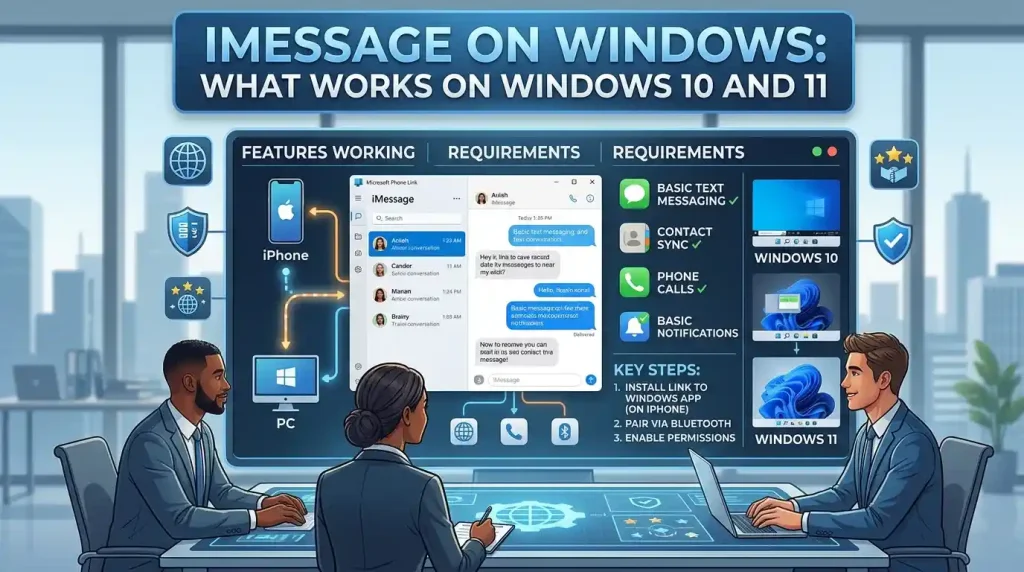
Microsoft does, however, provide Phone Link integration for iPhone.
With a compatible Windows PC and iPhone, Phone Link can provide access to messaging, calls, notifications, and other connected-phone functions.
But there are important limitations.
Phone Link’s iPhone messaging experience depends on a Bluetooth connection and does not provide all of the features available in Apple’s Messages app. Microsoft specifically documents limitations involving message history, group messages, media, and messages sent directly from the iPhone.
So the useful answer is not simply “yes” or “no.”
The better question is:
What kind of iPhone messaging can you actually use from Windows?
Can You Use iMessage on Windows?
Not in the same way you use iMessage on a Mac.
There is no official Apple Messages application for Windows that reproduces the full iMessage experience.
Instead, Windows users with an iPhone can use Microsoft Phone Link to access supported messaging functionality from their PC.
This distinction matters because iMessage itself has capabilities that go beyond ordinary text messaging.
Apple describes iMessage as an end-to-end encrypted messaging service available through the Messages app on Apple devices.
iMessage supports features such as:
- Blue-bubble conversations
- Read receipts
- Typing indicators
- Message editing
- Unsend
- Reactions
- Rich media
- Memoji
- Group conversations
- Other Apple messaging features
The iPhone integration in Phone Link does not reproduce all of these capabilities.
What Phone Link Actually Provides
Microsoft describes Phone Link for iPhone as a way to access supported phone functions from Windows, including:
- Text messages
- Calls
- Notifications
- Contacts
- Other connected-phone features
The connection is established between the iPhone and Windows PC rather than turning Windows into a standalone Apple Messages device.
This is the most important distinction to remember throughout this guide.
iMessage vs Text Messages on Windows
The terminology around this subject can be confusing.
People often use “iMessage” to mean any message sent from an iPhone.
Technically, several different messaging systems can be involved.
iMessage
iMessage is Apple’s internet-based messaging service.
Messages between compatible Apple devices can appear as blue bubbles.
SMS
SMS is the traditional cellular text-message standard.
It does not require the Apple iMessage system.
MMS
MMS supports certain types of multimedia and group messaging through carrier-based messaging infrastructure.
RCS
RCS is a newer messaging standard that adds richer messaging capabilities compared with traditional SMS.
Apple now supports RCS on compatible iPhones, but RCS should still not be confused with iMessage.
Why This Matters on Windows
Phone Link’s iPhone implementation is centered around the messaging capabilities Microsoft can expose through the iPhone connection.
Therefore, seeing a message inside Phone Link does not necessarily mean that Windows is running Apple’s complete iMessage system.
This is why articles claiming that Phone Link simply “puts iMessage on Windows” can be misleading.
iMessage on Windows 11
Windows 11 is the most relevant environment for someone looking to connect an iPhone to a current Windows PC.
Microsoft’s current Phone Link documentation supports connecting an iPhone to Windows 11 using Bluetooth Low Energy.
Microsoft currently lists these requirements for the iPhone version:
- Windows 10 or Windows 11 PC
- Bluetooth Low Energy support
- iPhone running iOS 16 or later
- Bluetooth enabled on both devices
- Appropriate permissions on the iPhone
Microsoft recommends keeping Windows and Phone Link updated for the best experience.
How to Set Up Phone Link With an iPhone
The basic process is:
- Open Phone Link on the Windows PC.
- Select the iPhone option.
- Make sure Bluetooth is enabled on both devices.
- Follow the pairing instructions.
- Scan the QR code displayed by Phone Link using the iPhone.
- Complete Bluetooth pairing.
- Grant the requested permissions on the iPhone.
- Allow access to notifications, messages, and contacts as required.
- Complete the connection.
The exact interface can change as Microsoft updates Windows and Phone Link.
Why Permissions Matter
Phone Link cannot display information that it has not been given permission to access.
During setup, Microsoft asks for permissions that allow the PC to access supported information from the iPhone.
Depending on the features being used, this can include:
- Notifications
- Messages
- Contacts
- Call history
Users should understand that granting message permissions can expose sensitive information on the PC.
Microsoft specifically warns that sensitive data, including two-factor authentication SMS messages, can be visible in Phone Link when messaging permissions are granted.
iMessage on Windows 10
Phone Link’s current documentation still lists Windows 10 as compatible with the iPhone connection, provided the required update level and hardware requirements are met.
However, there is an important distinction in 2026.
Windows 10 reached end of support on October 14, 2025.
That means Windows 10 and Windows 11 should not be treated as equivalent choices for a new setup.
If you already have a Windows 10 PC, Phone Link compatibility information can still be relevant, but the operating system’s overall support status is an important security consideration.
For a new Windows computer, Windows 11 is the more relevant environment.
Can Windows 10 Users Still Try Phone Link?
If the PC meets Microsoft’s documented Phone Link requirements, the software may still provide iPhone connectivity.
But users should consider the broader implications of running an operating system that has reached its standard support end date.
The messaging feature itself is only one part of the security picture.
How Microsoft Phone Link Connects an iPhone
The iPhone version of Phone Link works differently from many of the Android integrations people may have seen.
The PC and iPhone establish a Bluetooth connection.
Microsoft specifically requires Bluetooth Low Energy, or BLE, for the iPhone Phone Link experience.
The setup uses a QR code to initiate pairing and then requires permissions on the iPhone.
Once connected, Phone Link can expose supported information from the iPhone to Windows.
Phone Link Is Not an iMessage Server
This is an important conceptual difference.
Your Windows computer is not independently connecting to Apple’s iMessage servers as a native Messages client.
Instead, the Windows PC is communicating with the paired iPhone through Microsoft’s Phone Link integration.
That is why the iPhone needs to remain connected for the supported messaging workflow.
Can You Use iMessage on Windows Without Bluetooth?
For the normal Phone Link iPhone setup, Bluetooth is required.
Microsoft’s current requirements specifically call for Bluetooth Low Energy support, and its setup instructions require Bluetooth to be enabled on both the PC and iPhone.
Therefore, disabling Bluetooth removes the normal Phone Link connection mechanism.
Why Bluetooth Is Important
Bluetooth provides the local connection between the iPhone and Windows PC.
If the devices are no longer connected:
- Phone Link loses access to the iPhone
- Messaging synchronization can stop
- Calls can stop working through the connection
- Notifications can stop appearing
- Message history available through Phone Link can disappear
Microsoft specifically states that the iPhone’s Phone Link message history is tied to the Bluetooth connection.
This is one of the biggest differences between Phone Link’s iPhone implementation and what users may expect from a cloud-based messaging service.
What Happens When Bluetooth Disconnects?
This is one of the more important Phone Link limitations.
Microsoft says that messages shown in Phone Link are those sent or received while the iPhone and PC are connected through Phone Link.
When the Bluetooth connection ends, the message history available through Phone Link can disappear.
That means Phone Link should not be thought of as a permanent Windows-based archive of your iPhone Messages.
The iPhone remains the primary device.
iMessage on Windows Without Phone Link
If you specifically want to use Apple’s complete Messages experience on Windows without Phone Link, the situation becomes more complicated.
There is no official Apple Messages application for Windows equivalent to the macOS Messages app.
You may encounter alternative approaches online, including:
- Remote access to a Mac
- Third-party applications
- Community-developed projects
- Remote desktop solutions
- Unofficial bridges
These approaches are not equivalent to an official Windows iMessage client.
Using a Mac as a Bridge
One approach discussed online involves leaving a Mac running Messages and accessing that Mac remotely from Windows.
In this setup, the Windows PC is effectively controlling or viewing the Mac rather than running iMessage natively.
The advantage is that the actual Messages application remains on Apple hardware.
The disadvantage is that you need a Mac and a suitable remote-access setup.
Third-Party Software
Third-party applications may advertise iMessage access from Windows.
Be cautious with any software that requests access to:
- Apple credentials
- Messages
- Contacts
- Remote-access permissions
- System-level permissions
The fact that a project works technically does not automatically mean it is trustworthy.
iMessage on Windows Through iCloud
Another common search is iMessage on Windows iCloud.
This comes from the understandable assumption that because iCloud synchronizes Apple information, signing into iCloud on Windows should provide access to Messages.
That is not how iCloud for Windows works.
iCloud Is Not a Windows iMessage Client
Apple provides iCloud services for Windows, but installing iCloud on Windows does not turn the PC into the Apple Messages application.
iCloud can provide access to supported Apple services and data, but the existence of iCloud on Windows does not mean that the complete iMessage experience becomes available.
This is an important distinction between:
iCloud synchronization
and
running Apple Messages.
What About iCloud.com?
Apple provides web-based access to certain iCloud services.
However, that should not be confused with a full browser version of the iPhone Messages application.
If your objective is specifically to use iMessage conversations from Windows, iCloud alone is not the same thing as having Messages on the PC.
iMessage on Windows GitHub Projects
Searching for iMessage on Windows GitHub can produce community-developed projects that attempt to bridge the gap between Apple’s messaging ecosystem and Windows.
These projects can be interesting from a technical perspective.
However, they should be evaluated carefully.
Why GitHub Projects Are Different
A GitHub repository may be:
- Experimental
- Community maintained
- Incomplete
- Abandoned
- Dependent on another device
- Limited to certain versions
- Difficult to configure
A repository that worked several years ago may no longer work with current iOS or Windows versions.
Security Considerations
Before installing an unofficial messaging bridge, inspect:
- Repository activity
- Recent commits
- Issue discussions
- Release history
- Required permissions
- Authentication method
- Where credentials are stored
- Whether the project requires a Mac
- Whether binaries are provided
- Whether the source can be reviewed
Never assume that a GitHub project is safe simply because the source code is publicly visible.
What Reddit Users Say About iMessage on Windows
Searches for iMessage on Windows Reddit can be useful for discovering real-world experiences.
Community discussions often focus on:
- Phone Link
- Bluetooth problems
- Missing messages
- iMessage limitations
- Third-party applications
- Mac-based workarounds
- Privacy concerns
- Changes after iOS or Windows updates
But Reddit should be treated as anecdotal evidence.
A user’s successful setup may depend on a particular iPhone model, iOS version, Windows build, permissions, Bluetooth hardware, or third-party software.
Likewise, one person’s failure does not necessarily mean that the entire feature is broken.
For current compatibility information, Microsoft’s documentation is the better starting point.
What Phone Link Can and Cannot Do With an iPhone
This is where the difference between “iMessage on Windows” and “iPhone messaging on Windows” becomes especially clear.
Phone Link Can Provide
Depending on the current configuration, Phone Link can provide access to:
- Text messages
- Calls
- Notifications
- Contacts
- Recent messaging activity
Important Limitations
Microsoft currently documents several limitations for iPhone messaging.
Phone Link does not currently provide the full messaging feature set available on the iPhone.
For example:
- Group messaging is not supported for sending through Phone Link.
- Images, GIFs, and Memojis cannot currently be sent or received through the iOS version of Phone Link.
- Messages sent directly from the physical iPhone may not appear in Phone Link.
- Message history is tied to the active Bluetooth connection.
- Messages cannot be deleted from the PC through Phone Link.
These limitations make it inaccurate to describe Phone Link as a complete Windows version of iMessage.
Why Some iPhone Messages Don’t Appear on Windows
This can be confusing when you first set up Phone Link.
You might send or receive a message on your iPhone and expect it to immediately appear on Windows.
Microsoft says that Phone Link’s iPhone implementation currently displays messages sent and received while the iPhone and PC are paired and connected.
Messages sent directly from the iPhone may not appear in Phone Link in the same way.
This means Phone Link should not be considered a perfect mirror of the iPhone’s complete Messages history.
Group Messages on Phone Link
Group messaging is another significant limitation.
Microsoft currently says that group messages cannot be created and sent through Phone Link for iPhone.
If an iPhone receives a group message, it may appear as a notification, but responding to the group conversation requires using the iPhone.
Why This Matters
If most of your messaging happens in group conversations, Phone Link may be considerably less useful than you expect.
It works better for straightforward one-to-one text communication than for reproducing the full Apple Messages experience.
Images, GIFs and Memojis
Phone Link for iPhone currently has another important limitation:
It does not support sending or receiving images, GIFs, and Memojis through the iOS messaging experience.
This can make the difference especially obvious to users who regularly send photos or rich media.
A simple text conversation can work reasonably well.
A media-heavy conversation is a different situation.
Can You Delete Messages From Windows?
No.
Microsoft currently states that messages cannot be managed or deleted from the PC through Phone Link.
This reinforces the idea that Phone Link is a companion interface rather than a complete replacement for Apple’s Messages application.
For message management that Phone Link does not support, use the iPhone itself.
Common iMessage-on-Windows Problems
Phone Link Does Not Detect the iPhone
Start with the basics:
- Bluetooth is enabled
- Bluetooth Low Energy is supported
- iPhone is running a supported iOS version
- Windows is updated
- Phone Link is updated
- Devices are nearby
- Required permissions are enabled
If pairing previously worked but stopped, removing the Bluetooth pairing from both devices and starting the pairing process again can help.
QR Code Pairing Fails
Make sure Bluetooth is enabled on both devices.
Microsoft also recommends removing the existing Bluetooth pairing and starting again if the connection remains incomplete.
This can clear an old or corrupted pairing state.
Messages Are Missing
Check whether:
- The iPhone is still connected
- Bluetooth is active
- Phone Link is running
- The required permissions remain enabled
- The message was actually sent or received while Phone Link was connected
Remember that Phone Link does not necessarily reproduce the entire iPhone message history.
Notifications Are Not Appearing
Check notification permissions on the iPhone and Windows.
Also confirm that Bluetooth is active.
Microsoft’s troubleshooting documentation specifically notes that disabling Bluetooth or notification sharing can prevent iPhone notifications from appearing.
Phone Link Suddenly Stops Working
Try:
- Check Bluetooth.
- Check the iPhone connection.
- Restart Phone Link.
- Check for Windows updates.
- Check for Phone Link updates.
- Check iPhone permissions.
- Remove and recreate the Bluetooth pairing if necessary.
Is There a Full iMessage App for Windows?
There is no official Apple Messages application for Windows that provides the complete iMessage experience available on Apple’s own platforms.
This is the key reason many “iMessage on Windows” solutions are actually workarounds.
Microsoft Phone Link is the most straightforward built-in Windows approach for connecting an iPhone, but it has limitations.
Third-party solutions may attempt to provide additional functionality, but they come with different technical, privacy, and reliability considerations.
What About Using a Windows PC and a Mac Together?
If you own both a Mac and Windows PC, remote access can provide another option.
The Windows computer can connect to the Mac and display or control the Mac’s Messages environment.
This is not native iMessage support on Windows.
The actual Messages application remains on macOS.
This approach may make sense for someone who already has a Mac available, but it is unnecessary complexity if all you need is basic iPhone text access through Phone Link.
If you’re researching Mac-related display problems as part of a broader Apple/Windows setup, our MacBook Stage Light Effect guide covers a separate Mac hardware issue in detail.
iMessage on Windows Without Installing Third-Party Software
If your goal is simply to access supported iPhone messaging functionality from Windows without installing an unofficial iMessage bridge, Phone Link is the obvious place to start.
It is integrated into the Microsoft ecosystem and has documented iPhone support.
You still need:
- Compatible Windows PC
- Bluetooth Low Energy
- Supported iOS version
- iPhone
- Bluetooth connection
- Required permissions
The limitation is functionality.
You get supported messaging features rather than the complete Apple Messages application.
Is Phone Link Safe for iPhone Messages?
Phone Link is Microsoft’s official Windows-to-phone integration, but users should still understand what permissions they are granting.
When message access is enabled, information from the iPhone can become visible on the Windows PC.
This can include sensitive messages.
That is particularly important on:
- Shared computers
- Office computers
- Family PCs
- Computers used by multiple people
Microsoft specifically warns that sensitive information such as two-factor authentication SMS messages can be visible in Phone Link when the relevant permissions are granted.
Use the feature only on a Windows account and PC you trust.
Windows 11 Is the Better Long-Term Environment
Phone Link documentation still lists Windows 10 and Windows 11 for iPhone connectivity.
However, Windows 10 reached its standard support end date in October 2025.
Therefore, in 2026, Windows 11 is the more appropriate platform for someone setting up a new Windows PC and looking for long-term support.
This does not mean every Windows 10 Phone Link installation suddenly stops working.
It means the operating system itself should be considered separately from Phone Link compatibility.
iMessage on Windows: What Actually Works?
The easiest way to summarize the situation is with three levels.
Full Apple iMessage Experience
Windows: No official native Messages application.
Microsoft Phone Link
Windows: Yes, supported iPhone messaging functionality.
But it has limitations involving:
- Bluetooth
- Message history
- Group messaging
- Media
- Message management
Unofficial Workarounds
Possible, but dependent on third-party projects, remote access, or additional hardware/software.
These approaches require more caution because their security, reliability, and compatibility can vary.
Should You Use Phone Link or a Third-Party Solution?
For most people, the decision comes down to how much functionality they actually need.
Phone Link Makes Sense If:
- You mainly need basic text messaging
- You want calls and notifications on Windows
- You already use an iPhone
- You are comfortable keeping Bluetooth connected
- You prefer an official Microsoft solution
A Different Approach May Be Necessary If:
- You need the full iMessage feature set
- You frequently use group conversations
- You send lots of photos or GIFs
- You need complete message history
- You need full message management
- You specifically want Apple’s Messages interface
In those cases, the iPhone or a Mac remains the more complete Apple messaging environment.
Key Takeaways
The phrase iMessage on Windows can be misleading because Windows does not have an official Apple Messages application that reproduces the full iMessage experience.
Microsoft Phone Link does provide iPhone integration on Windows.
It can give users access to supported:
- Text messages
- Calls
- Notifications
- Contacts
But there are significant limitations.
Phone Link’s iPhone connection requires Bluetooth Low Energy, and message history is tied to the active connection.
Microsoft also documents restrictions involving group messaging, images, GIFs, Memojis, direct messages sent from the iPhone, and message deletion.
iCloud does not turn Windows into a native iMessage client, while unofficial GitHub projects and other workarounds should be evaluated carefully for security and reliability.
So if your goal is basic iPhone messaging from a Windows PC, Phone Link can be useful.
If your goal is the complete iMessage experience exactly as it works on an iPhone or Mac, Phone Link should not be presented as an equivalent replacement.
Before You Try It: Does Your PC Meet the Requirements?
The fastest way to avoid unnecessary troubleshooting is to check the requirements first.
You need:
- Windows 10 or Windows 11
- Bluetooth Low Energy support
- An iPhone running a supported iOS version
- Bluetooth enabled on both devices
- Required iPhone permissions
- Current versions of Windows and Phone Link where possible
If your PC lacks Bluetooth Low Energy support, the standard iPhone Phone Link setup is not going to work as intended.
What If Phone Link Shows Only Some Messages?
This is usually a limitation rather than evidence that your iPhone has lost messages.
Phone Link’s iPhone implementation is not designed to provide a permanent mirror of every conversation stored in the iPhone’s Messages app.
Microsoft states that messages available through Phone Link are associated with messages sent or received while the devices are connected.
If a message was handled directly on the iPhone, it may not appear in Phone Link.
Can You Use iMessage on a Windows PC With Bluetooth Turned Off?
Not through the normal iPhone Phone Link connection.
Bluetooth Low Energy is part of Microsoft’s requirements for connecting the iPhone to Windows.
Turning Bluetooth off therefore removes the connection Phone Link relies on for its iPhone messaging functionality.
Does iCloud Give Windows Access to iPhone Messages?
No.
iCloud for Windows provides access to supported iCloud services and data, but it does not install Apple’s Messages application on Windows.
If your specific goal is to use iMessage conversations from a PC, iCloud should not be treated as a substitute for the Messages app.