 20 min read
NinjaOne Patch Management: Complete Guide to Patching, 3PP, AI and Pricing
Keeping operating systems and applications patched sounds straightforward until an organization has dozens, hundreds, or thousands of endpoints.
Someone has to identify missing updates, determine which patches are relevant, decide whether they should be approved, schedule installations, deal with reboots, investigate failures, and verify that devices actually became compliant.
That is where NinjaOne Patch Management fits into the endpoint-management workflow.
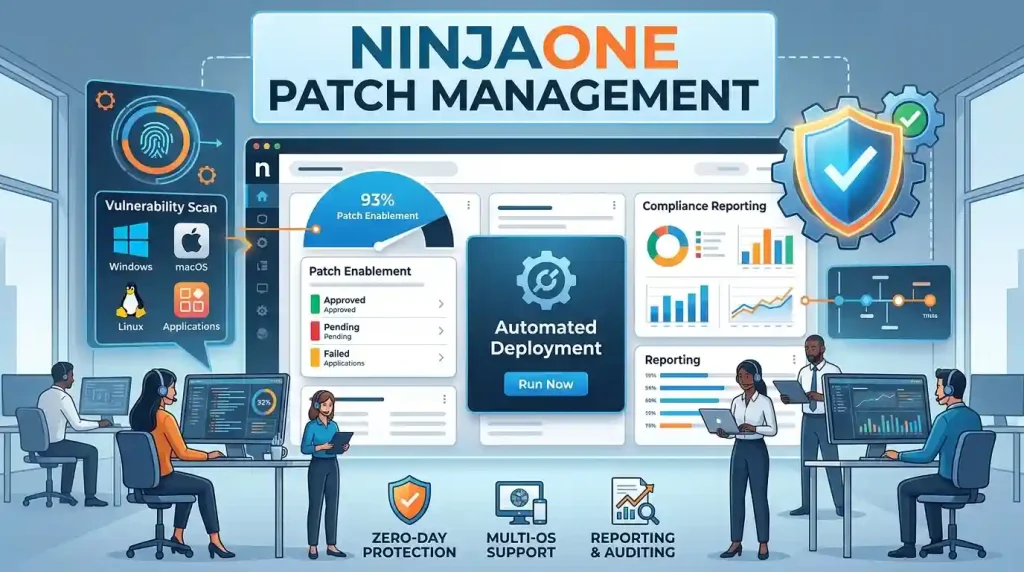
NinjaOne provides policy-based patching for managed endpoints, with capabilities covering operating-system updates and third-party application patching. It also provides centralized patch-status views, approval controls, scheduling options, reboot management, automation, and Patch Intelligence AI for Windows patch analysis.
This guide explains how NinjaOne patch management works, what it can patch, how third-party patching fits into the system, how a typical configuration works, what Patch Intelligence AI does, where the documentation fits in, and what to know about pricing and demonstrations.
The goal is not simply to describe the product. It is to explain the concepts behind NinjaOne patching so you can determine whether its approach matches your organization’s requirements.
Patch management is one part of a broader software management workflow. For more on productivity tools and cloud-based software, see our guide to cloud based productivity apps.
What Is NinjaOne Patch Management?
NinjaOne Patch Management is a patching capability within the NinjaOne endpoint-management platform.
It allows IT teams and managed service providers to manage software and operating-system updates through policies assigned to managed devices.
Instead of technicians manually checking individual computers for missing updates, a patch-management system can centralize tasks such as:
- Detecting available updates
- Determining which patches apply to devices
- Setting approval rules
- Scheduling scans
- Scheduling installations
- Managing reboot behavior
- Deploying approved patches
- Tracking installation results
- Identifying failed patches
- Reviewing compliance
- Handling third-party application updates
NinjaOne supports patch management across Windows, macOS, and Linux environments, while its third-party application patching capabilities extend software update management beyond the operating system.
This distinction matters because operating-system patching and third-party software patching are related but are not exactly the same task.
A Windows endpoint might be fully updated while still running an outdated browser, PDF application, Java installation, or another supported third-party application.
A complete patch-management strategy therefore needs to consider both.
What Does NinjaOne Patch Management Do?
At a high level, NinjaOne turns patching into a policy-driven process.
An administrator creates or modifies a policy and determines how devices should handle patches.
Depending on the operating system and configuration, the policy can control areas such as:
- Patch scanning
- Patch deployment
- Approval status
- Patch categories
- Security severity
- Reboots
- Pre-patch automation
- Post-patch automation
- Manual overrides
- Third-party software updates
The result is a centralized workflow rather than a collection of individual update procedures.
The exact controls available depend on the operating system and patching feature being configured, so Windows, macOS, and Linux should not automatically be assumed to have identical capabilities.
How NinjaOne Patch Management Works
A simplified NinjaOne patching workflow looks like this:
- Devices are managed by the NinjaOne agent.
- A patching policy is assigned to those devices.
- The endpoint scans for applicable updates.
- Available patches are evaluated according to policy settings.
- Patches can enter states such as approved, pending, or rejected.
- Approved updates are deployed according to the configured schedule.
- Reboot behavior is handled according to policy.
- Installation results are recorded.
- Administrators review compliance, failures, and pending actions.
- Individual patches can be overridden when necessary.
One important detail is that NinjaOne does not simply mean that every patch is automatically installed immediately.
Patch management involves decisions.
For example, an organization might want security updates to receive faster approval while keeping optional updates under manual review.
Another organization might use different policies for servers, employee laptops, test devices, and production systems.
This is why patch policies are central to the NinjaOne approach.
What Types of Patches Can NinjaOne Manage?
NinjaOne’s patching capabilities vary by operating system and patch type, but the platform supports multiple categories of endpoint updates.
Windows OS Patches
Windows patch management can handle operating-system updates through NinjaOne policies.
Windows administrators can configure items such as:
- Scan schedules
- Update schedules
- Approval settings
- Security update approvals
- General update approvals
- Advanced update approvals
- Reboot options
- Patch overrides
- Pre-patch actions
- Post-patch actions
Windows patch policies can also distinguish between different update categories and approval requirements.
This makes it possible to create a more controlled patching process instead of treating every available Windows update identically.
macOS Patching
NinjaOne also provides macOS patch management.
The important concept is that patch management is configured according to the operating system rather than assuming that a Windows patching workflow can simply be copied to another platform.
Organizations managing mixed fleets should therefore examine the current documentation for the specific macOS versions and patch types they use.
Linux Patching
Linux patch management is another part of the NinjaOne patching environment.
Linux environments can introduce additional considerations involving repositories, dependencies, distributions, and package availability.
For that reason, Linux patching should be evaluated using the specific distributions and server configurations in an organization’s environment.
NinjaOne Third-Party Patching
Third-party patching is one of the most important parts of the NinjaOne patch-management discussion.
Operating-system updates are only one part of endpoint security.
Applications from other vendors can also contain vulnerabilities and require regular updates.
Examples commonly associated with third-party patching include applications such as:
- Adobe software
- Google Chrome
- Java
- Other supported Windows applications
The exact supported application catalog can change over time, so an organization should check the current NinjaOne catalog before treating any particular application as permanently supported.
What Is NinjaOne Third-Party Patching?
NinjaOne third-party patching allows administrators to discover outdated supported applications and manage their updates through patching policies.
The general workflow is similar to operating-system patching:
Detect → evaluate → approve → schedule → deploy → verify
This can reduce the need for technicians to manually update individual applications across managed endpoints.
Why Third-Party Patching Matters
Consider a company with 500 Windows computers.
Even if Windows Update is properly configured, those computers may have dozens of additional applications installed.
Manually tracking all of those applications can become difficult.
Third-party patch management helps centralize that process.
It can also provide a more consistent approach to application updates across managed devices.
NinjaOne Third-Party Patching List
Searches for a NinjaOne third-party patching list often come from people trying to determine whether a particular application is supported.
This is an area where old articles and forum discussions can become misleading.
The supported catalog can change as vendors release new software versions and NinjaOne adds or changes application support.
Therefore, when evaluating NinjaOne, check the current supported-application information rather than relying on a static list published years earlier.
Examples such as Chrome, Adobe applications, and Java can demonstrate the concept, but they should not be interpreted as a permanent or exhaustive catalog.
NinjaOne Patch Management Workflow
A useful way to understand NinjaOne patching is to follow a typical endpoint through the process.
Step 1: Create the Policy
The administrator creates or selects an agent policy.
The policy becomes the central location for patching behavior.
Step 2: Enable Patching
Patching is enabled within the appropriate policy configuration.
The available configuration differs depending on the operating system.
Step 3: Configure Scan Scheduling
The system needs to determine when endpoints should check for available patches.
Scanning and installation are not necessarily the same event.
Separating these processes gives administrators more control over when updates are discovered and when they are deployed.
Step 4: Configure Approval Rules
This is one of the most important parts of patch management.
A patch can be:
- Automatically approved
- Manually approved
- Rejected
- Overridden for a particular situation
Approval rules can be based on patch type, security importance, or other policy settings.
Step 5: Configure Deployment
The administrator determines when approved patches should be installed.
Organizations may choose different schedules for different device groups.
For example:
- Test devices can receive updates earlier.
- Employee laptops can be updated during scheduled maintenance windows.
- Production servers can follow a more controlled deployment process.
Step 6: Configure Reboots
Some updates require restarting the endpoint.
A patching strategy therefore needs to account for reboot behavior.
The objective is to complete the update without unnecessarily disrupting users or critical workloads.
Step 7: Monitor Results
After patches are deployed, administrators need to know what happened.
A patch can be successfully installed, remain pending, or fail.
Monitoring turns patch deployment into a measurable process rather than a simple installation task.
How to Configure Patch Management in NinjaOne
A basic NinjaOne patch-management tutorial can be understood through the following process.
The exact interface and available settings can change, so treat this as a conceptual configuration guide rather than a substitute for the current product documentation.
1. Open the Appropriate Policy
Start with the agent policy assigned to the devices you want to manage.
Avoid applying a single patching strategy to every device automatically.
Servers, workstations, test machines, and critical systems may have different maintenance requirements.
2. Enable Patching
Activate the appropriate patching feature for the operating system.
For Windows, this means configuring the OS patching settings within the policy.
3. Configure Scan and Update Schedules
Choose when devices should scan for updates and when approved updates should be installed.
Keeping these concepts separate can provide greater control over the workflow.
4. Configure Approval Rules
Decide which categories should be:
- Automatically approved
- Manually reviewed
- Rejected
Do not assume that automatic approval is appropriate for every environment.
Testing remains important, particularly for critical production systems.
5. Configure Reboot Behavior
Determine what should happen when a patch requires a reboot.
Depending on the environment, you may need user notifications, scheduled restarts, or controlled maintenance windows.
6. Add Overrides Where Necessary
An individual patch may require treatment that differs from the general policy.
For example, an administrator may decide to manually approve or reject a particular patch.
Overrides provide a way to handle exceptions without redesigning the entire policy.
7. Review the Dashboard
After configuration, use the patch-management dashboard to monitor results.
Look for:
- Pending patches
- Approved patches
- Rejected patches
- Installed patches
- Failed patches
- Compliance information
- Reboot requirements
This helps identify devices that need additional attention.
NinjaOne Patch Intelligence AI
NinjaOne Patch Intelligence AI is designed to provide additional information about Windows patches before administrators decide how to handle them.
According to current NinjaOne documentation, the feature can generate AI-based patch explanations and identify known issues using information such as Microsoft-reported issues, community information, and anonymized NinjaOne patch failure or rollback telemetry.
The feature is specifically intended to help administrators make more informed patching decisions.
What Does Patch Intelligence AI Analyze?
The system can provide information about patch risk and known problems.
For example, a patch may receive attention when there are indications of:
- Known issues
- Increased failure rates
- Rollbacks
- Compatibility concerns
- Stability concerns
- Community-reported problems
The important point is that AI does not eliminate the need for patch-management decisions.
Instead, it provides another layer of information that can help an administrator decide whether an update should proceed automatically or receive additional review.
Patch Intelligence AI Approval Overrides
NinjaOne provides Windows patch-policy controls that can use Patch Intelligence AI to alter automated approval behavior when certain concerns are identified.
Depending on configuration, an administrator can choose actions such as:
- Move a patch to manual approval
- Reject a patch
This can be useful when an organization wants automation but does not want potentially problematic patches to pass through an automated approval process without additional consideration.
How Often Is Patch Intelligence AI Evaluated?
Current NinjaOne documentation states that Patch Intelligence AI evaluates Windows patch sentiment every six hours.
That matters because patch intelligence can change after an update has initially been released.
A patch that initially appears acceptable may later receive additional reports or telemetry indicating a problem.
This is one reason patching should be treated as an ongoing process rather than a one-time decision made when an update first appears.
NinjaOne Patch Management Dashboard
Centralized visibility is another important part of patch management.
The NinjaOne patching dashboard provides views for software and operating-system patches.
Depending on the configuration, administrators can review information such as:
- Pending patches
- Approved patches
- Rejected patches
- Installed patches
- Failed patches
- Patch versions
- Applicable devices
- Compliance information
- CVE-related patch information
The dashboard can therefore help answer questions such as:
Which devices are still missing an approved patch?
Which updates failed?
Which patches are waiting for approval?
Which endpoints are compliant?
This information becomes particularly valuable as the number of managed devices grows.
NinjaOne Patch Management Documentation
If you are searching for NinjaOne patch management documentation, the documentation library is more useful than relying on one general tutorial.
NinjaOne maintains separate documentation for different patch-management areas.
Important documentation categories include:
- Windows patch management
- macOS patch management
- Linux patch management
- Windows third-party patching
- Third-party patching FAQs
- Patch Intelligence AI
- Patch approval
- Patch deployment
- Patch dashboards
- Patch troubleshooting
- Patch compliance
- Patch-management best practices
The documentation is also updated over time.
That matters because screenshots, navigation paths, feature names, and supported capabilities can change between product versions.
When troubleshooting a current NinjaOne installation, prefer recently updated documentation over old forum answers.
NinjaOne Patch Management Pricing
Pricing is one of the areas where online information can become outdated quickly.
NinjaOne uses a per-device pricing model, but the actual price can depend on factors such as endpoint volume, products purchased, region, promotions, and commercial terms.
Current published NinjaOne pricing information gives standard pricing ranges rather than presenting one universal price for every customer.
The current pricing page indicates a range beginning at approximately $1.50 USD per month at very high endpoint volumes and increasing to approximately $3.75 USD at 50 or fewer endpoints for the commercial, non-FedRAMP instance.
These figures should not be interpreted as a guaranteed quote for a specific organization.
What Affects NinjaOne Pricing?
When researching NinjaOne patch management pricing, consider:
- Number of endpoints
- Products or modules purchased
- Region
- Contract terms
- Promotions
- Volume discounts
- Required functionality
This is why comparing a simple per-device number may not provide the complete picture.
Is There a Free Trial?
NinjaOne currently offers a 14-day free trial for its patch-management solution.
A trial can be useful because patch management is highly dependent on the environment.
Instead of evaluating only screenshots or feature lists, an IT team can examine:
- Agent deployment
- Policy configuration
- Patch discovery
- Approval workflows
- Reboots
- Third-party patching
- Reporting
- Failed updates
- Device compatibility
That can provide more useful information than a generic product comparison.
NinjaOne Patch Management Demo
People searching for a NinjaOne patch management demo are generally trying to understand what the platform looks like before committing to a trial or purchasing it.
A useful demonstration should cover more than a dashboard screenshot.
Ask to see the complete workflow.
What Should a Patch Management Demo Show?
A meaningful demo should demonstrate:
- Creating a patching policy
- Assigning devices
- Configuring scan schedules
- Configuring update schedules
- Setting approval rules
- Managing third-party applications
- Handling reboot requirements
- Reviewing failed patches
- Applying a patch manually
- Viewing compliance information
- Handling exceptions
- Using Patch Intelligence AI where applicable
This gives you a much clearer understanding of how the system behaves in real operational situations.
A good demo should also explain what happens when something goes wrong.
For example, ask what happens if:
- A patch fails
- A device is offline
- A reboot is required
- A user postpones a reboot
- A patch is later discovered to have an issue
- A third-party application is unsupported
- A server needs a different patching schedule
These questions are often more useful than simply asking how many features the platform has.
NinjaOne Patch Management vs General Patch Management Software
NinjaOne is one example of patch management software, but the broader category includes many different approaches.
When comparing patch management platforms, focus on capabilities rather than product names alone.
Operating-System Coverage
Check whether the platform supports the operating systems in your environment.
For example:
- Windows
- macOS
- Linux
Do not assume that support for one operating system means identical functionality across all three.
Third-Party Application Coverage
This is particularly important for organizations with large application inventories.
Check:
- Number of supported applications
- Applications important to your environment
- Frequency of catalog updates
- Approval controls
- Deployment controls
- Custom application support
- Application version handling
Approval Controls
A patching system should provide a way to control automated deployment.
Look for:
- Automatic approval
- Manual approval
- Rejection
- Per-patch overrides
- Severity-based rules
- Test groups
Scheduling
A good patch-management platform should allow administrators to determine when scanning and installation occur.
This becomes especially important for servers and systems that cannot tolerate unexpected downtime.
Reboot Management
Reboots can be one of the most disruptive parts of patching.
Evaluate:
- User notifications
- Maintenance windows
- Reboot scheduling
- Forced reboot behavior
- Post-update behavior
Reporting
Patching is not finished when an update is sent.
You also need to verify the result.
Look for reports covering:
- Compliance
- Failed installations
- Missing patches
- Installed patches
- Device status
- Vulnerability information
Automation
Automation can reduce technician workload, but excessive automation without appropriate controls can create risk.
The ideal configuration depends on the environment.
Patch Management Best Practices
Whether you use NinjaOne or another patch management software platform, several principles remain useful.
Test Important Updates
Do not assume every update will behave identically on every endpoint.
Use representative test devices where practical.
Separate Critical Systems
Production servers and business-critical devices may require different patch schedules from ordinary workstations.
Use Approval Rules Carefully
Automation is useful, but approval rules should reflect the organization’s tolerance for operational risk.
Monitor Failed Patches
A failed patch is not the same as a completed patch.
Create a process for identifying and remediating failures.
Track Reboots
A device can download an update without fully completing the update process if a required restart has not occurred.
Review Third-Party Applications
Do not focus only on operating-system patches.
Third-party applications can also introduce vulnerabilities and maintenance requirements.
Keep Policies Simple
More configuration does not automatically mean better patch management.
Policies should be understandable enough that another administrator can determine why a particular group of devices receives patches at a particular time.
Review Patch Exceptions
Manual exceptions can accumulate.
Periodically review rejected patches and overrides to make sure they are still necessary.
NinjaOne Patch Management and Security
Patch management is closely connected to endpoint security because software vulnerabilities can remain exploitable when updates are not deployed.
However, patch management should not be treated as a complete cybersecurity strategy.
Patching is one control among many.
Organizations should also consider:
- Endpoint protection
- Identity security
- Access controls
- Backups
- Network security
- Vulnerability management
- Security monitoring
- Incident response
- User awareness
A patching platform can help reduce the window between an update becoming available and that update being deployed, but it does not eliminate every security risk.
NinjaOne Patch Management Reddit Discussions
Searches for NinjaOne patch management Reddit can be useful when researching real-world experiences, but forum discussions should be treated as anecdotal rather than definitive product documentation.
A Reddit user may describe:
- A particular patch failure
- A device-specific problem
- A configuration workaround
- An experience with an MSP
- An issue involving a specific operating-system version
That information can help you identify questions to investigate.
It should not automatically be treated as proof that the same behavior applies to every NinjaOne environment.
For technical troubleshooting, current vendor documentation should generally be checked alongside community discussions.
Common NinjaOne Patch Management Problems
Even a well-configured patch-management platform can encounter problems.
Patches Remain Pending
Possible reasons include:
- Approval rules
- Scheduling
- Device availability
- Reboot requirements
- Policy configuration
- Patch applicability
The first step is to determine exactly which state the patch is in.
A Patch Fails
A failed patch needs investigation rather than simply another deployment attempt.
Possible causes can include:
- Device-specific conditions
- Software dependencies
- Insufficient disk space
- Reboot requirements
- Vendor update problems
- Network problems
- Operating-system issues
A Device Does Not Appear Compliant
Compliance reporting should be examined alongside the device’s current patch state.
A device may have downloaded an update but still require a restart.
A Third-Party Application Does Not Update
Check whether the application is currently supported by the third-party patching catalog and whether the appropriate policy includes it.
Do not assume every application installed on an endpoint is automatically covered.
What to Check Before Choosing NinjaOne Patch Management
If you are evaluating NinjaOne, create a checklist based on your actual environment.
Endpoint Requirements
Determine:
- Number of devices
- Operating systems
- Servers versus workstations
- Remote versus office devices
- Critical systems
Application Requirements
List the third-party applications that matter most.
Then verify whether they are currently supported.
Operational Requirements
Determine:
- Required maintenance windows
- Reboot requirements
- Approval workflow
- Testing requirements
- Compliance reporting needs
Security Requirements
Consider:
- Vulnerability remediation
- Patch prioritization
- Known patch issues
- Audit requirements
- Reporting
Financial Requirements
Calculate expected cost based on:
- Endpoint count
- Required NinjaOne products
- Region
- Contract structure
- Potential volume discounts
A quote based on your actual environment is more meaningful than relying on an old pricing article.
Is NinjaOne Patch Management the Same as NinjaRMM Patch Management?
You may still see searches for NinjaRMM patch management or ninjarmm patch management.
NinjaRMM was the former name associated with the platform before the company became NinjaOne.
As a result, older documentation, forum posts, videos, and search results may still use NinjaRMM terminology.
When researching current functionality, prioritize current NinjaOne documentation.
Older NinjaRMM material can be useful for historical context, but it may not accurately represent the current interface or feature set.
How to Think About NinjaOne Patch Management
The easiest way to understand NinjaOne patch management is to break it into five layers:
1. Detection
Find updates that apply to managed endpoints.
2. Decision
Determine whether those updates should be approved, rejected, or reviewed.
3. Deployment
Install approved updates according to configured schedules.
4. Verification
Determine whether installation succeeded.
5. Remediation
Investigate failures, reboots, exceptions, and devices that remain unpatched.
Third-party patching extends the same basic idea to applications outside the operating system.
Patch Intelligence AI adds another information layer by helping evaluate potential issues with Windows patches.
Together, these capabilities form a patch-management workflow rather than simply an automated update button.
In Summary
NinjaOne Patch Management is designed around centralized, policy-driven patching rather than manually updating individual endpoints.
Its patch-management workflow covers operating-system updates, third-party application patching, approval rules, scheduling, reboot handling, monitoring, and reporting. Current Windows capabilities also include Patch Intelligence AI features intended to provide additional context around potentially problematic updates.
For organizations evaluating the platform, the most important questions are not simply whether NinjaOne has patch management.
The more useful questions are:
- Does it support the operating systems you actually use?
- Does its third-party application catalog cover your important software?
- Can its approval rules match your risk tolerance?
- Can you separate testing and production devices?
- Does its reboot behavior fit your maintenance windows?
- Can your team investigate failed patches efficiently?
- Does the reporting provide the compliance information you need?
- Does the pricing model make sense for your endpoint count?
- Does the current product documentation support the workflows you require?
Those questions provide a more useful evaluation framework than relying on a feature checklist alone.
People also search for
Does NinjaOne patch applications that are not in its supported catalog?
Third-party patching depends on the applications supported by NinjaOne’s current patch catalog. An application being installed on a managed endpoint does not automatically mean NinjaOne can patch it. The supported catalog should therefore be checked against the actual software inventory before deployment.
Can NinjaOne patch a device that is temporarily offline?
Patch deployment depends on the endpoint being available to receive and process the update. If a device is offline during a scheduled operation, administrators need to account for when it reconnects and how the applicable policy handles the missed operation.
Can administrators manually apply an individual patch in NinjaOne?
Yes. NinjaOne provides controls for manually applying patches when a situation requires faster action, such as an urgent security update or hotfix. This can be useful when an administrator does not want to wait for the normal policy schedule.
Does NinjaOne patch management replace vulnerability management?
No. Patch management is an important part of vulnerability remediation, but it is not identical to a complete vulnerability-management program. Organizations may still need broader vulnerability discovery, prioritization, monitoring, and security processes.