 21 min read
Cloud Based Productivity Apps: Types, Benefits, and How to Choose the Right Tools
Cloud based productivity apps have changed how people organize work, communicate, manage files, create documents, and collaborate with other people.
Instead of keeping every application and file tied to one computer, cloud productivity tools use online services to make information and workflows accessible across supported devices. A person might write a document on a laptop, review it on a phone, share it with a colleague, and continue editing it from another computer without manually transferring the latest file.
This approach is particularly useful for remote and hybrid work, but it is not limited to businesses. Students, freelancers, families, small teams, and individual users can also use cloud-based tools to manage tasks, notes, schedules, files, projects, and everyday information.
There is also no single type of cloud productivity app.
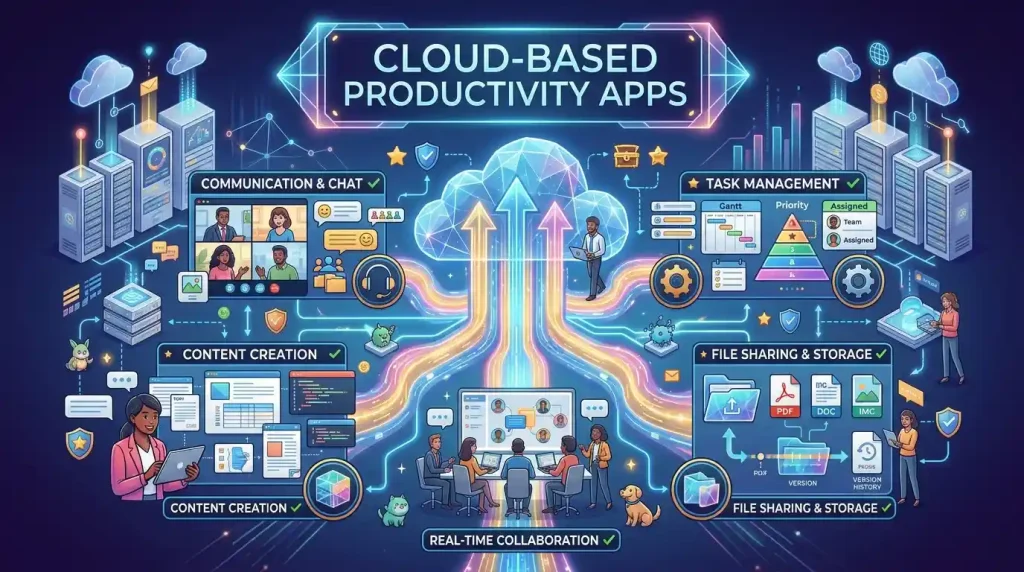
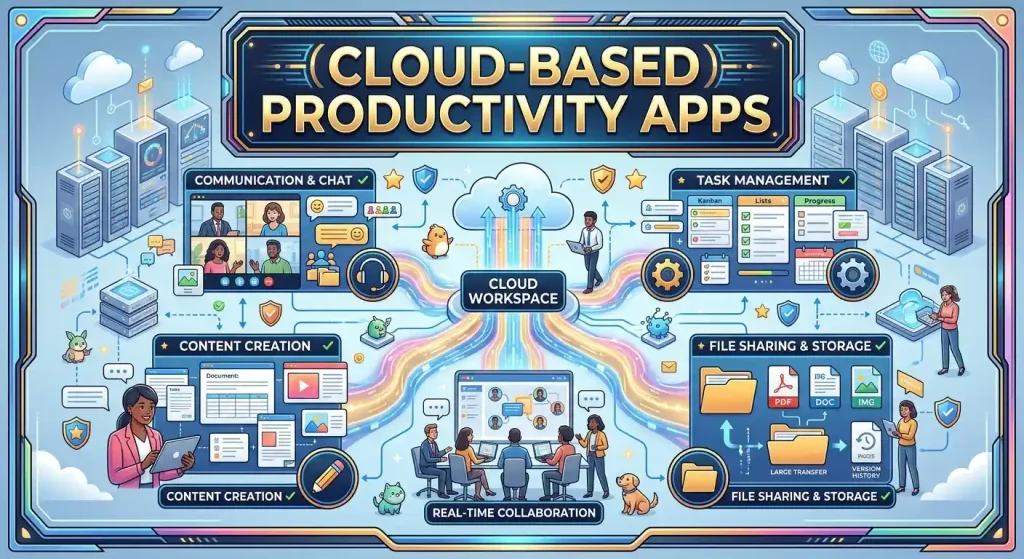
The category includes task managers, project-management tools, collaborative document editors, cloud storage services, note-taking platforms, calendars, communication tools, scheduling applications, and increasingly, AI-powered productivity features.
The right choice therefore depends less on finding one universally “best” application and more on identifying the work you need to accomplish.
What Are Cloud Based Productivity Apps?
Cloud based productivity apps are software applications that use internet-connected cloud infrastructure to store, synchronize, process, or deliver some part of the user’s productivity workflow.
Instead of relying entirely on software installed on one computer, the application can connect to an online service.
Depending on the product, this can allow users to:
- Access information from multiple devices
- Store files online
- Share documents with other people
- Collaborate in real time
- Synchronize tasks and notes
- Manage projects
- Schedule meetings
- Communicate with teammates
- Back up or synchronize work
- Use AI-assisted features
- Continue work across computers, phones, and tablets
Examples of common cloud productivity ecosystems include services such as Microsoft 365 and Google Workspace, while specialized tools focus on particular areas such as project management, team communication, knowledge management, or task tracking.
Microsoft 365, for example, combines applications such as Word, Excel, PowerPoint, Outlook, OneDrive, Teams, and other services within its broader productivity platform. Google Workspace similarly brings together Gmail, Drive, Docs, Sheets, Slides, Meet, Chat, Calendar, Tasks, Keep, and other tools.
The important point is that cloud-based productivity does not necessarily mean every part of the software runs only in a web browser.
Some cloud services have desktop or mobile applications that synchronize with online services. Others are primarily browser-based. Some support offline work and synchronize changes when a connection becomes available.
How Do Cloud Productivity Apps Work?
A typical cloud productivity workflow has several parts.
The application
This is the interface you use to perform a task.
It could be:
- A web application
- A desktop application
- A smartphone app
- A tablet application
The cloud service
The provider operates online infrastructure that stores or processes your information.
Depending on the application, that may include:
- Documents
- Tasks
- Notes
- Messages
- Calendar information
- Project data
- Uploaded files
- Account settings
Synchronization
Synchronization keeps supported devices and services aligned.
For example, you might create a document on a laptop and then open it from a phone later. The cloud service can provide the latest saved version rather than requiring you to manually copy the file between devices.
User accounts
Cloud productivity services commonly connect information to an account.
That allows the service to determine which files, projects, calendars, or workspaces you are allowed to access.
For organizations, account management can become especially important because administrators may need to control access when employees join, change roles, or leave.
Cloud Software vs Traditional Locally Installed Software
The difference is not simply “online versus offline.”
Traditional desktop software can store files locally and perform many tasks without a network connection.
Cloud-based productivity software places more of the workflow around online services and synchronization.
| Area | Traditional local software | Cloud-based productivity tools |
|---|---|---|
| Main access | Usually installed on a device | Often web, mobile, desktop, or a combination |
| Data location | Frequently local | Often stored or synchronized in the cloud |
| Collaboration | Often requires sharing files separately | Commonly built into the workflow |
| Updates | May require manual installation | Often delivered through the service |
| Multi-device access | Can require manual file transfer | Usually designed around synchronization |
| Offline work | Often strong | Depends on the specific application |
| Account management | May be limited | Often central to the service |
| Internet dependency | Often lower | Can be higher depending on features |
Modern software increasingly combines both models.
For example, Microsoft documents distinguish Microsoft 365’s web applications from its desktop applications, while Microsoft 365 can also provide cloud-based storage and synchronization through services such as OneDrive.
That means “cloud-based” should not automatically be interpreted as “nothing works without internet access.”
The Main Types of Cloud Productivity Tools
Cloud productivity is a broad category, but most applications fall into a manageable number of practical groups.
The important thing is not memorizing every product name. It is understanding what each type of tool is designed to accomplish.
Many productivity apps are offered through subscription-based models. For a broader look at how these services work, see our guide to companies that offer digital subscriptions.
Task and Project Management
Task and project-management applications help people turn work into organized actions.
A basic task might contain:
- A title
- Due date
- Priority
- Status
- Assignee
- Notes
- Attachments
Project-management tools can extend this into larger structures containing multiple tasks, milestones, dependencies, projects, teams, and deadlines.
For an individual, this can mean organizing personal projects or a weekly workload.
For a team, the same approach can provide visibility into who is responsible for each task.
When this category makes sense
Task-management software is useful when work involves:
- Multiple deadlines
- Recurring tasks
- Several projects
- Team assignments
- Project stages
- Work that needs status tracking
The best productivity tool for a simple personal checklist may be very different from the right system for a team managing hundreds of tasks.
Examples include Asana, Trello, ClickUp and monday.com.
Team Collaboration
Collaboration apps are designed to reduce the friction involved in working with other people.
Instead of sending a file back and forth through email, a team might work from a shared document.
Instead of asking repeatedly whether someone has the latest version, team members can work from the same cloud-based resource.
Modern productivity platforms can support:
- Shared documents
- Comments
- Mentions
- File sharing
- Team spaces
- Chat
- Meetings
- Shared calendars
- Task assignments
Google Workspace, for example, supports real-time collaboration in documents, spreadsheets, and presentations, while Microsoft 365 supports sharing and real-time co-authoring across supported applications.
This is one of the biggest reasons cloud applications have become important for distributed teams.
Examples include Slack, Microsoft Teams and Google Chat.
Document Creation and Editing
Document applications are another major part of cloud productivity.
These tools can cover:
- Word processing
- Spreadsheets
- Presentations
- Forms
- Shared documents
- Collaborative editing
The major advantage is not simply being able to create a document.
It is being able to make the document part of a connected workflow.
For example:
- A writer creates a document.
- A colleague reviews it.
- Another person adds comments.
- A manager approves the final version.
- The document remains available to authorized users.
- The final file can be shared or exported when necessary.
This reduces the need for multiple copies such as:
report-final.docx
report-final-2.docx
report-final-approved.docx
A cloud workflow can instead keep people working around a shared source.
Examples include Google Docs (part of Google Workspace) and Microsoft Word (part of Microsoft 365).
File Management and Cloud Storage
File management is one of the most important productivity use cases.
A file management app or cloud-storage service can help users organize:
- Documents
- Images
- PDFs
- Presentations
- Spreadsheets
- Project files
- Shared resources
- Backups
The productivity benefit comes from making files easier to locate and share.
Instead of keeping important files only on one computer, users can store them in a cloud environment and access them from supported devices.
Google Workspace, for example, integrates Drive with its broader productivity ecosystem, allowing files to be stored and shared from the same environment used for documents and collaboration. Microsoft 365 similarly integrates OneDrive and SharePoint into its productivity environment.
A good file management system should answer three questions
Where is the file?
You should be able to find it quickly.
Who can access it?
Permissions should be understandable and controllable.
Which version is current?
Teams need to avoid confusion caused by multiple competing copies.
Cloud storage can help with all three, but only if the folder structure, permissions, and naming system are properly managed.
Examples include Google Drive, Dropbox, Microsoft OneDrive and Box.
Notes and Knowledge Management
Not every piece of useful information belongs in a formal document.
Notes and knowledge-management tools are designed for information such as:
- Ideas
- Meeting notes
- Research
- Procedures
- Checklists
- Reference material
- Personal notes
- Project documentation
For an individual, a notes app might simply replace a collection of notebooks.
For a team, a knowledge base can become a shared reference point for processes and information.
This becomes especially valuable when employees work remotely because important knowledge does not have to remain inside one person’s memory or local files.
Examples include Notion, Evernote and Microsoft OneNote.
Communication and Messaging
Communication tools are another part of cloud productivity.
These can include:
- Team chat
- Direct messages
- Group conversations
- Video meetings
- Voice calls
- File sharing
- Meeting notifications
The purpose is not simply to communicate more.
It is to connect communication with work.
A team might discuss a project, share a document, hold a video meeting, and follow up with tasks without constantly switching between unrelated systems.
Google Workspace, for example, combines Gmail, Meet, Chat, Calendar, Drive, Docs, Sheets, and other applications within one ecosystem.
Microsoft 365 similarly combines communication and productivity services such as Outlook, Teams, OneDrive, SharePoint, Word, Excel, and PowerPoint.
Examples include Slack, Microsoft Teams and Zoom.
Calendars, Scheduling, and Time Management
Calendars are often overlooked when discussing productivity apps, but they are central to many workflows.
Cloud calendars can synchronize:
- Meetings
- Appointments
- Deadlines
- Reminders
- Shared schedules
- Availability
For teams, shared calendars can reduce scheduling conflicts.
For individuals, calendar synchronization makes it easier to see commitments across devices.
Some productivity platforms also connect calendars with meetings, email, tasks, and contacts, creating a more integrated workflow.
The benefit is less about having another calendar and more about connecting time management with the rest of your work.
Examples include Google Calendar, Microsoft Outlook Calendar and Calendly.
AI-Powered Productivity Tools
Artificial intelligence has become an increasingly visible part of productivity software.
AI-powered productivity tools can assist with tasks such as:
- Drafting
- Summarizing
- Rewriting
- Extracting information
- Brainstorming
- Searching information
- Analyzing documents
- Creating structured content
- Automating repetitive work
- Generating meeting-related summaries
- Working with information stored inside productivity platforms
This is where AI tool apps and broader artificial intelligence apps overlap with traditional productivity software.
Microsoft currently integrates Copilot and other AI capabilities into parts of its productivity ecosystem, while Google integrates Gemini-related AI capabilities into Workspace and offers additional AI services for work.
For AI-assisted writing specifically, our Semrush paraphrase guide explains how its AI rephrasing tools work.
AI is a productivity layer, not necessarily a separate app
A common mistake is to think of AI productivity as a completely separate category.
In practice, AI can be embedded directly into:
- Documents
- Spreadsheets
- Meetings
- Search
- Project management
- Note-taking
- File management
That can make AI more useful because the tool may already have access to the context needed for the task, subject to the product’s permissions and privacy controls.
AI still needs human review
AI-generated content can contain mistakes, misunderstand information, or produce unsuitable recommendations.
For important work, users should review AI output rather than treating it as automatically correct.
The more sensitive the information, the more important it is to understand how the specific service handles data before using its AI features.
Examples include ChatGPT, Microsoft Copilot and Google Gemini.
How Productivity Apps for Teams Work
A productivity app becomes more valuable for a team when it provides a shared environment rather than simply giving every person an individual tool.
A typical team workflow might look like this:
Project → Tasks → Documents → Communication → Files → Calendar
For example, a team could create a project, assign tasks to individual employees, attach documents, discuss progress, schedule meetings, and store final files within connected services.
Shared workspaces
A workspace gives multiple users access to common information.
This can reduce duplicated files and disconnected workflows.
Permissions
Not every employee needs access to every file.
A useful collaboration platform should provide some way to control who can view, edit, share, or manage information.
Comments and mentions
Comments allow people to discuss a document or task without creating separate email chains.
Mentions can bring a specific person’s attention to an item.
Real-time collaboration
Real-time editing allows multiple people to work on supported documents simultaneously.
This can be particularly useful when a team needs to review something together.
Activity and history
Some services provide revision history or activity information, making it easier to understand how a document or task changed.
The exact capabilities differ by product, so organizations should evaluate the specific collaboration model before choosing a platform.
Cloud Productivity Apps for Remote and Hybrid Work
Cloud-based tools are particularly useful when employees are not working from the same physical location.
A traditional office can rely heavily on local context.
Someone can walk to a colleague’s desk, pick up a document, or ask a question in person.
Remote work removes much of that physical context.
Cloud productivity systems can replace some of it with shared digital resources.
For example:
- Documents live in shared workspaces.
- Meetings happen through online conferencing.
- Tasks are assigned digitally.
- Files are accessible from approved devices.
- Calendars show availability.
- Team conversations remain accessible to relevant members.
- Project information can be documented instead of existing only in someone’s head.
Microsoft explicitly positions Microsoft 365 around working from different locations and supports file sharing and real-time co-authoring.
Google likewise provides collaboration across computers, phones, and tablets, with offline support available for selected Workspace applications.
Cloud Based Productivity Tools for Businesses
Businesses use productivity apps for many of the same reasons individuals do, but the requirements become more demanding as the organization grows.
A business may need:
- Centralized user accounts
- Access controls
- Shared files
- Team communication
- Document collaboration
- Scheduling
- Project management
- Administrative controls
- Security features
- Data retention
- Integration with other systems
This is why apps for business productivity are often sold as broader platforms rather than single-purpose applications.
For example, Microsoft 365 and Google Workspace combine several productivity categories within broader ecosystems.
The goal should not be to buy the platform with the longest feature list.
The goal is to choose a system that fits the organization’s actual workflow.
A five-person company may have very different requirements from a multinational organization with thousands of employees.
Free vs Paid Productivity Apps
Many cloud productivity services provide free plans, trials, or limited versions.
Paid plans can add things such as:
- More storage
- Additional collaboration features
- Larger user limits
- Administrative controls
- Advanced security
- Business email
- AI features
- Higher usage limits
- More integrations
- Support options
But a higher-priced plan is not automatically more productive.
If you only need a personal task list, paying for a large business platform may add unnecessary complexity.
If a company needs centralized administration and controlled access, a basic free plan may not be sufficient.
Compare the actual limits
Before choosing a free or paid productivity app, check:
- Number of users
- Storage limits
- File-size limits
- Collaboration restrictions
- AI usage limits
- Integration availability
- History or version limits
- Administrative features
- Export options
- Support
- Security controls
Pricing and feature structures change frequently, so current plan details should always be checked directly before purchasing.
What to Consider When Choosing Productivity Tools
There are many applications for productivity, but choosing between them becomes easier if you evaluate the workflow rather than the marketing page.
1. Start with the problem
Ask:
What am I actually trying to improve?
If the problem is missed deadlines, you may need task management.
If files are difficult to find, you may need better file management.
If employees constantly email document attachments, collaborative documents and cloud storage may solve the underlying issue.
If meetings consume too much time, scheduling and communication tools may be more relevant.
2. Consider integrations
An application becomes more useful when it connects with the services you already use.
For example:
- Calendar + task management
- Email + task management
- Storage + documents
- Meetings + calendars
- AI + documents
- Project management + communication
Without integration, you may simply create another isolated tool.
3. Check cross-platform support
If your work happens across Windows, macOS, Android, iPhone, tablets, and browsers, check whether the application supports the devices you actually use.
Cross-platform access is one of the major advantages of cloud-based workflows, but individual applications can have different desktop and mobile capabilities.
4. Look at collaboration features
For teams, ask whether the service supports:
- Shared workspaces
- Comments
- Permissions
- Real-time editing
- File sharing
- Notifications
- Task assignments
- Version history
Not every collaboration feature is equally useful for every team.
5. Evaluate storage
If the service handles large amounts of files, storage becomes an important factor.
Check:
- Included storage
- Per-user versus shared storage
- File-size limits
- Archive options
- Version history
- Recovery features
6. Check offline access
Cloud does not necessarily mean “always online.”
Some applications support offline editing and later synchronization.
Others require a connection for most or all functions.
If you travel frequently or work in places with unreliable connectivity, this should be one of your first questions.
Google, for example, documents offline support for selected Workspace applications such as Docs, Sheets, Slides, and Gmail, while real-time services such as Meet and Chat require an internet connection.
7. Review privacy and security
Productivity platforms can contain extremely sensitive information.
That could include:
- Customer information
- Business documents
- Financial information
- Contracts
- Internal communications
- Password-related information
- Personal notes
Before adopting a service, investigate its security controls, account protection, data handling, access management, and administrative capabilities.
For organizations, features such as two-step verification, single sign-on, centralized administration, device management, and access controls can become important. Google Workspace and Microsoft 365 both provide various administrative and security capabilities for organizational users.
8. Think about account ownership
This matters especially for businesses.
If an employee creates important information inside a personal account, what happens when that employee leaves?
A business should ideally structure important data around organization-controlled accounts and permissions rather than individual personal accounts.
9. Consider export and portability
Before committing to a platform, understand how easily you can retrieve your information.
Ask:
- Can documents be exported?
- Can files be downloaded?
- Can tasks be exported?
- Can the organization move data elsewhere?
- What happens if the subscription ends?
A productive system should not become a trap simply because leaving it is difficult.
Keeping those tools updated matters too — our NinjaOne patch management guide explains automated OS and third-party patching.
Common Mistakes When Choosing Cloud Productivity Apps
Choosing too many apps
More software does not automatically mean more productivity.
If one team uses one application for tasks, another for documents, another for communication, another for notes, another for calendars, and another for file sharing, employees may spend more time moving information between systems.
Buying features nobody uses
A long feature list looks impressive, but unused features can make a system harder to understand.
Start with the workflow and add complexity only when it solves a real problem.
Ignoring permissions
Cloud storage makes sharing easy.
That is useful, but uncontrolled sharing can create security problems.
Permissions should be part of the initial setup, not something added after a problem occurs.
Assuming cloud means backup
Cloud storage and backup are related but not identical concepts.
A synchronized file can still be deleted or overwritten.
Important business information may require a separate backup and recovery strategy depending on the organization’s needs.
Treating AI output as automatically correct
AI can save time, but it should not remove human review from important decisions.
Use AI to accelerate appropriate tasks while maintaining review and accountability.
Do Cloud Based Productivity Apps Require Internet Access?
Not always.
Some cloud applications offer offline modes.
A user may be able to download or cache information locally, make changes while disconnected, and synchronize those changes once the connection returns.
Other functions may require an active connection.
A practical way to think about it is:
Cloud storage: usually needs connectivity to synchronize.
Offline mode: may allow selected work without connectivity.
Real-time collaboration: normally requires connectivity.
Cloud AI: generally requires connectivity because processing occurs through an online service.
Local desktop software: can often perform more work without the internet, depending on licensing and application design.
The exact behavior is application-specific.
Are Cloud Productivity Apps Suitable for Personal Use?
Absolutely.
Cloud productivity is not only for corporations.
Individuals can use cloud tools for:
- Personal task management
- Notes
- Study
- File organization
- Calendars
- Writing
- Household planning
- Travel planning
- Personal projects
- Photo and document storage
The key is to avoid adopting a complex business workflow when a simple personal tool would solve the problem.
For one person, a notes app, calendar, cloud drive, and task manager may be enough.
How AI Is Changing Productivity Apps
AI is moving productivity software beyond simple storage and organization.
Traditional productivity software largely helped users create, store, organize, and communicate information.
AI can add another layer:
understand, summarize, generate, analyze, and act on information.
For example, an AI assistant integrated into a productivity environment might help summarize an email thread, extract tasks from text, draft a document, analyze information, or help users search across relevant work.
Google currently describes Gemini as an AI layer integrated into Workspace applications such as Gmail, Docs, and Meet, while Microsoft positions Copilot as an AI assistant integrated into parts of Microsoft 365.
This creates an important distinction between a standalone AI application and AI embedded inside productivity software.
A standalone AI tool may require you to copy information into it.
An integrated assistant may already operate inside the environment where the work is happening, depending on the product and permissions.
That can reduce context switching.
What Makes the Best Cloud Based Productivity Apps Useful?
There is no single feature that makes an application the best choice for everyone.
Useful cloud productivity tools generally solve a specific problem well and fit naturally into the user’s existing workflow.
For one person, the priorities might be:
- Simplicity
- Low cost
- Mobile access
- Notes
- Tasks
For a remote team, they might be:
- Collaboration
- File sharing
- Permissions
- Video meetings
- Project tracking
For a larger business, the priorities may shift toward:
- Administration
- Security
- Account management
- Compliance requirements
- Integrations
- Data governance
- Centralized storage
The “best” option therefore depends on the environment.
A Practical Way to Build Your Productivity Stack
You do not need to choose every type of application at once.
Start with the core workflow.
Step 1: Choose where your files live
Decide how important documents and shared files will be stored and organized.
Step 2: Choose how tasks are tracked
Determine whether tasks belong in a personal checklist, project-management system, or another workflow.
Step 3: Connect your calendar
Use scheduling tools to manage deadlines, meetings, and availability.
Step 4: Add communication
Choose the appropriate channels for messages, meetings, and collaboration.
Step 5: Add knowledge management
Create a shared place for information that people repeatedly need.
Step 6: Add AI where it actually saves time
Use AI for repetitive or information-heavy tasks where it provides a clear benefit.
Step 7: Remove unnecessary tools
If two applications perform nearly identical jobs and one is not needed, simplify the stack.
This approach prevents productivity software from becoming another source of complexity.
The Bottom Line
Cloud based productivity apps are best understood as a way of organizing modern work around connected online services.
They can help individuals and teams create documents, manage tasks, organize files, communicate, schedule work, share information, and collaborate across devices.
The major categories include task management, project management, collaborative documents, cloud storage, file management, notes, communication, calendars, scheduling, and AI-assisted productivity.
For teams, the biggest advantage is often the shared environment: people can work from common documents, files, tasks, and communication channels rather than maintaining disconnected copies.
For remote and hybrid workers, cloud access can make work available across locations and devices.
For individuals, the main benefit may simply be having important information available wherever they work.
But cloud productivity is not automatically better just because it is cloud-based.
The right choice depends on your actual workflow, budget, devices, collaboration requirements, storage needs, offline requirements, integrations, privacy expectations, and security needs.
Instead of searching for the one universally “best” productivity app, identify the bottleneck you are trying to solve and choose the smallest set of tools that solves it well.
That is usually a more productive approach than collecting dozens of applications.
People Also Search For
Can cloud productivity software work without an internet connection?
Some can. Certain applications provide offline modes that allow users to edit documents, create notes, or perform other tasks while disconnected. Other features, especially real-time communication, cloud AI, and live collaboration, generally require an active connection.
Is cloud storage the same thing as a file management system?
Not exactly. Cloud storage provides a place to store and access files, while file management also involves organization, naming, permissions, sharing, versioning, and retrieval. A good cloud-storage service may include many file-management features, but the concepts are not identical.
Are AI productivity apps useful for small teams?
They can be, particularly when AI reduces repetitive work such as drafting, summarizing, organizing information, or analyzing documents. The value depends on the team’s workflow and the specific AI capabilities available in the chosen platform.
What should a company check before moving its productivity workflow to the cloud?
It should evaluate security, account ownership, permissions, integrations, storage, device support, offline capabilities, data export, administrative controls, pricing, and how the provider handles organizational data. The right checklist will also depend on the company’s size and regulatory requirements.